> ## Documentation Index
> Fetch the complete documentation index at: https://www.cometchat.com/docs/llms.txt
> Use this file to discover all available pages before exploring further.
# Overview
> Overview of Overview in CometChat.
Introducing CometChat UIKit v4
V4 UI kits offer modular design, extended functionality & > customization for a tailored chat experience. Check out our new UIKits [here](/ui-kit/vue/overview).
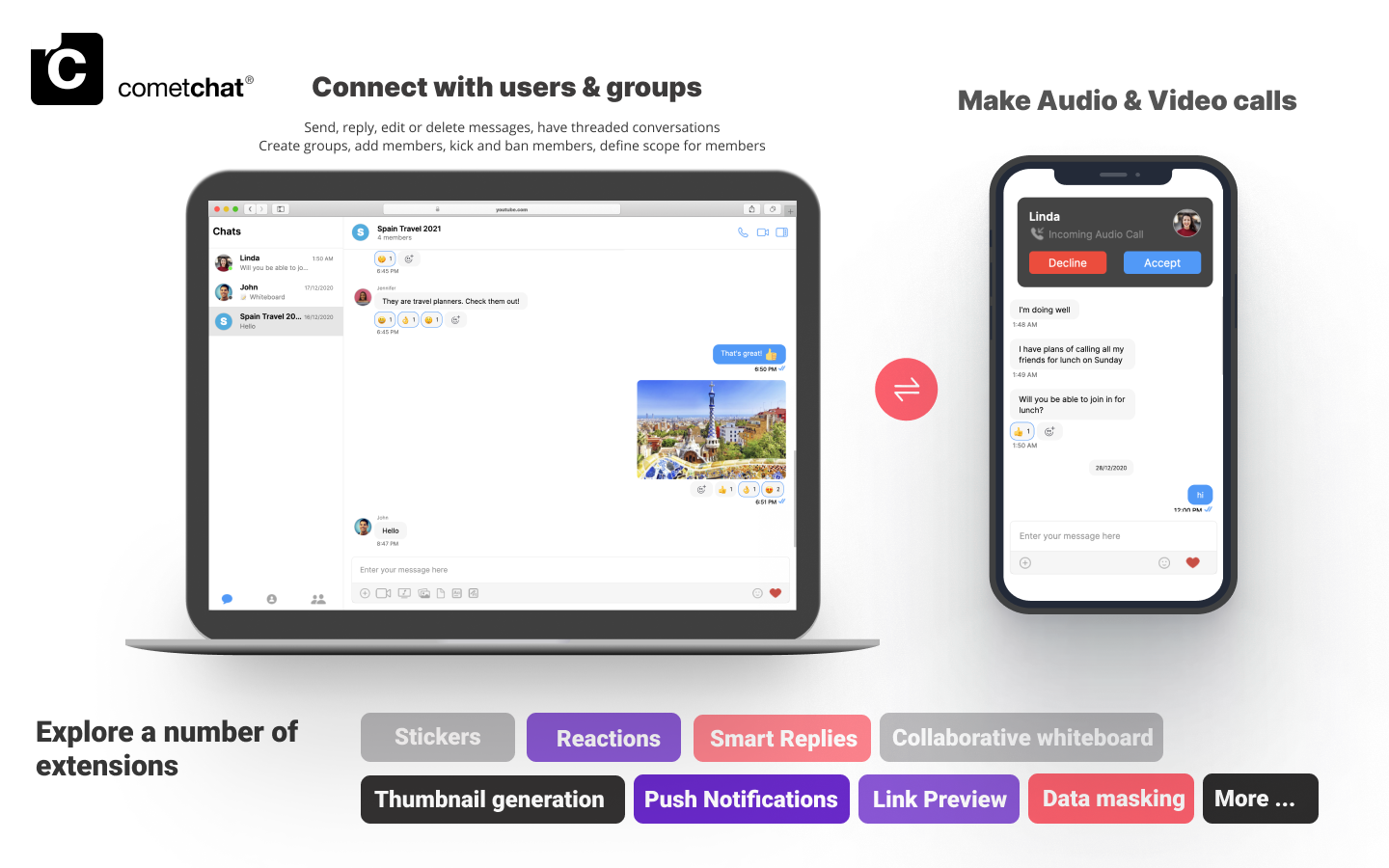
The CometChat **Vue JS UI Kit** lets developers integrate text chat & voice/video calling features into websites seamlessly.
 👍 Improvements in V3.0
Faster connection & response times\
Higher rate limits\
Supports up to 100K users in a group\
Unlimited groups\
Support for Transient Messages\
Real-time user & group members count And more!
The Vue Chat UI Kit’s customizable **VueJS UI components** simplify the process of integrating text chat and voice/video calling features to your website in a few minutes.
Follow the steps mentioned in the `README.md` file.
Kindly, click on below button to download our Vue UI Kit.
[Vue UI Kit](https://github.com/cometchat-pro/cometchat-pro-vue-ui-kit/archive/master.zip)
[View on Github](https://github.com/cometchat-pro/cometchat-pro-vue-ui-kit/)
Kindly, click on below button to download our Vue Sample App.
[Vue Sample App](https://github.com/cometchat-pro/javascript-vue-chat-app/archive/master.zip)
[View on Github](https://github.com/cometchat-pro/javascript-vue-chat-app/)
## Prerequisites
Before you begin, ensure you have met the following requirements:
1. A text editor. (e.g. Visual Studio Code, Notepad++, Sublime Text, Atom, or VIM)
2. [Node](https://nodejs.org/en/)
3. [npm](https://www.npmjs.com/get-npm)
4. [Vue](https://vuejs.org/)
For installing Vue 2
```sh theme={null}
npm install vue@2.6.14
```
For installing Vue 3
```sh theme={null}
npm install vue@3.2.11
```
## Installing Vue JS UI Components
Important
Please follow the steps provided in the [Key Concepts](/ui-kit/vue/3.0/key-concepts) to create V3 apps before you proceed.
### Setup
1. Register on CometChat 🔧
* To install Vue UI Kit, you need to first register on the CometChat Dashboard. Click here to Sign Up.
2. Get your application keys 🔑\
a. Create a new app.\
b. Head over to the QuickStart or API & Auth Keys section and note the App ID, Auth Key, and Region.
3. Add the CometChat dependency 📦
```sh theme={null}
npm install @cometchat-pro/chat@3.0.13 --save
```
### Configure CometChat inside your app
* Import CometChat SDK
```js theme={null}
import { CometChat } from "@cometchat-pro/chat";
```
* Initialize CometChat 🌟
The init() method initializes the settings required for CometChat. We suggest calling the init() method on app startup, preferably in the created() method of the Application class.
```js theme={null}
const appID = "APP_ID";
const region = "REGION";
const appSetting = new CometChat.AppSettingsBuilder()
.subscribePresenceForAllUsers()
.setRegion(region)
.build();
CometChat.init(appID, appSetting).then(
() => {
console.log("Initialization completed successfully");
// You can now call login function.
},
error => {
console.log("Initialization failed with error:", error);
// Check the reason for error and take appropriate action.
}
);
```
Replace APP\_ID and REGION with your CometChat App ID and Region in the above code
* Create user
This method takes a `User` object and the `Auth Key` as input parameters and returns the created `User` object if the request is successful.
```js theme={null}
let authKey = "AUTH_KEY";
var uid = "user1";
var name = "Kevin";
var user = new CometChat.User(uid);
user.setName(name);
CometChat.createUser(user, authKey).then(
user => {
console.log("user created", user);
},error => {
console.log("error", error);
}
)
```
Replace AUTH\_KEY with your CometChat Auth Key in the above code.
* Login your user 👤
This method takes UID and Auth Key as input parameters and returns the User object containing all the information of the logged-in user.
```js theme={null}
const authKey = "AUTH_KEY";
const uid = "cometchat-uid-1";
CometChat.login(uid, authKey).then(
user => {
console.log("Login Successful:", { user });
},
error => {
console.log("Login failed with exception:", { error });
}
);
```
Replace AUTH\_KEY with your CometChat Auth Key in the above code.
We have set up 5 users for testing having UIDs: cometchat-uid-1, cometchat-uid-2, cometchat-uid-3, cometchat-uid-4, and cometchat-uid-5.\
\
We have used uid cometchat-uid-1 as an example here. You can create a User from CometChat Dashboard as well.
### Add the Vue Chat UI Kit to your project
* Clone this repository.
```sh theme={null}
git clone https://github.com/cometchat-pro/cometchat-pro-vue-ui-kit.git
```
* Copy the cloned repository to your source folder
👍 Improvements in V3.0
Faster connection & response times\
Higher rate limits\
Supports up to 100K users in a group\
Unlimited groups\
Support for Transient Messages\
Real-time user & group members count And more!
The Vue Chat UI Kit’s customizable **VueJS UI components** simplify the process of integrating text chat and voice/video calling features to your website in a few minutes.
Follow the steps mentioned in the `README.md` file.
Kindly, click on below button to download our Vue UI Kit.
[Vue UI Kit](https://github.com/cometchat-pro/cometchat-pro-vue-ui-kit/archive/master.zip)
[View on Github](https://github.com/cometchat-pro/cometchat-pro-vue-ui-kit/)
Kindly, click on below button to download our Vue Sample App.
[Vue Sample App](https://github.com/cometchat-pro/javascript-vue-chat-app/archive/master.zip)
[View on Github](https://github.com/cometchat-pro/javascript-vue-chat-app/)
## Prerequisites
Before you begin, ensure you have met the following requirements:
1. A text editor. (e.g. Visual Studio Code, Notepad++, Sublime Text, Atom, or VIM)
2. [Node](https://nodejs.org/en/)
3. [npm](https://www.npmjs.com/get-npm)
4. [Vue](https://vuejs.org/)
For installing Vue 2
```sh theme={null}
npm install vue@2.6.14
```
For installing Vue 3
```sh theme={null}
npm install vue@3.2.11
```
## Installing Vue JS UI Components
Important
Please follow the steps provided in the [Key Concepts](/ui-kit/vue/3.0/key-concepts) to create V3 apps before you proceed.
### Setup
1. Register on CometChat 🔧
* To install Vue UI Kit, you need to first register on the CometChat Dashboard. Click here to Sign Up.
2. Get your application keys 🔑\
a. Create a new app.\
b. Head over to the QuickStart or API & Auth Keys section and note the App ID, Auth Key, and Region.
3. Add the CometChat dependency 📦
```sh theme={null}
npm install @cometchat-pro/chat@3.0.13 --save
```
### Configure CometChat inside your app
* Import CometChat SDK
```js theme={null}
import { CometChat } from "@cometchat-pro/chat";
```
* Initialize CometChat 🌟
The init() method initializes the settings required for CometChat. We suggest calling the init() method on app startup, preferably in the created() method of the Application class.
```js theme={null}
const appID = "APP_ID";
const region = "REGION";
const appSetting = new CometChat.AppSettingsBuilder()
.subscribePresenceForAllUsers()
.setRegion(region)
.build();
CometChat.init(appID, appSetting).then(
() => {
console.log("Initialization completed successfully");
// You can now call login function.
},
error => {
console.log("Initialization failed with error:", error);
// Check the reason for error and take appropriate action.
}
);
```
Replace APP\_ID and REGION with your CometChat App ID and Region in the above code
* Create user
This method takes a `User` object and the `Auth Key` as input parameters and returns the created `User` object if the request is successful.
```js theme={null}
let authKey = "AUTH_KEY";
var uid = "user1";
var name = "Kevin";
var user = new CometChat.User(uid);
user.setName(name);
CometChat.createUser(user, authKey).then(
user => {
console.log("user created", user);
},error => {
console.log("error", error);
}
)
```
Replace AUTH\_KEY with your CometChat Auth Key in the above code.
* Login your user 👤
This method takes UID and Auth Key as input parameters and returns the User object containing all the information of the logged-in user.
```js theme={null}
const authKey = "AUTH_KEY";
const uid = "cometchat-uid-1";
CometChat.login(uid, authKey).then(
user => {
console.log("Login Successful:", { user });
},
error => {
console.log("Login failed with exception:", { error });
}
);
```
Replace AUTH\_KEY with your CometChat Auth Key in the above code.
We have set up 5 users for testing having UIDs: cometchat-uid-1, cometchat-uid-2, cometchat-uid-3, cometchat-uid-4, and cometchat-uid-5.\
\
We have used uid cometchat-uid-1 as an example here. You can create a User from CometChat Dashboard as well.
### Add the Vue Chat UI Kit to your project
* Clone this repository.
```sh theme={null}
git clone https://github.com/cometchat-pro/cometchat-pro-vue-ui-kit.git
```
* Copy the cloned repository to your source folder
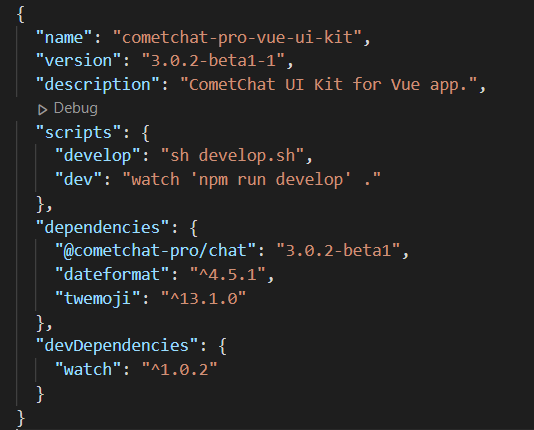
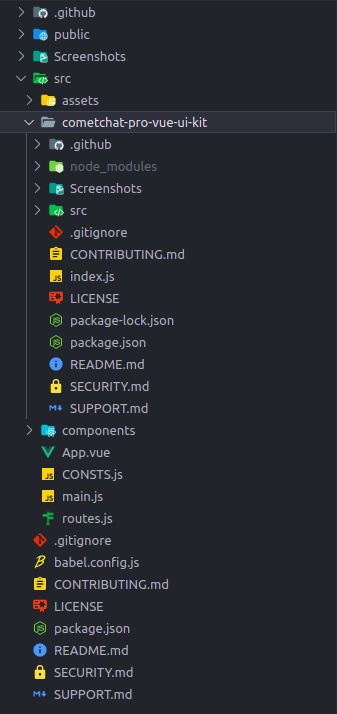 * Copy all the dependencies from package.json of `cometchat-pro-vue-ui-kit` into your project's package.json and install them.
* We are using [emoji-mart-vue-fast](https://www.npmjs.com/package/emoji-mart-vue-fast) Please install respective library depending on your Vue version
* * For Vue2 : `npm install emoji-mart-vue-fast@7.0.7`
* For Vue3 : `npm install emoji-mart-vue-fast@8.0.3`
* For **Vite** users : `npm install emoji-mart-vue-fast@9.1.2`
* Copy all the dependencies from package.json of `cometchat-pro-vue-ui-kit` into your project's package.json and install them.
* We are using [emoji-mart-vue-fast](https://www.npmjs.com/package/emoji-mart-vue-fast) Please install respective library depending on your Vue version
* * For Vue2 : `npm install emoji-mart-vue-fast@7.0.7`
* For Vue3 : `npm install emoji-mart-vue-fast@8.0.3`
* For **Vite** users : `npm install emoji-mart-vue-fast@9.1.2`
 ### Support for Vite
If you are using Vite, please update your `vite.config.js`
```js theme={null}
import { defineConfig } from 'vite'
import vue from '@vitejs/plugin-vue'
// https://vitejs.dev/config/
export default defineConfig({
plugins: [vue()],
resolve: {
extensions: ['.mjs', '.js', '.ts', '.jsx', '.tsx', '.json', '.vue'],
},
})
```
### Launch CometChat
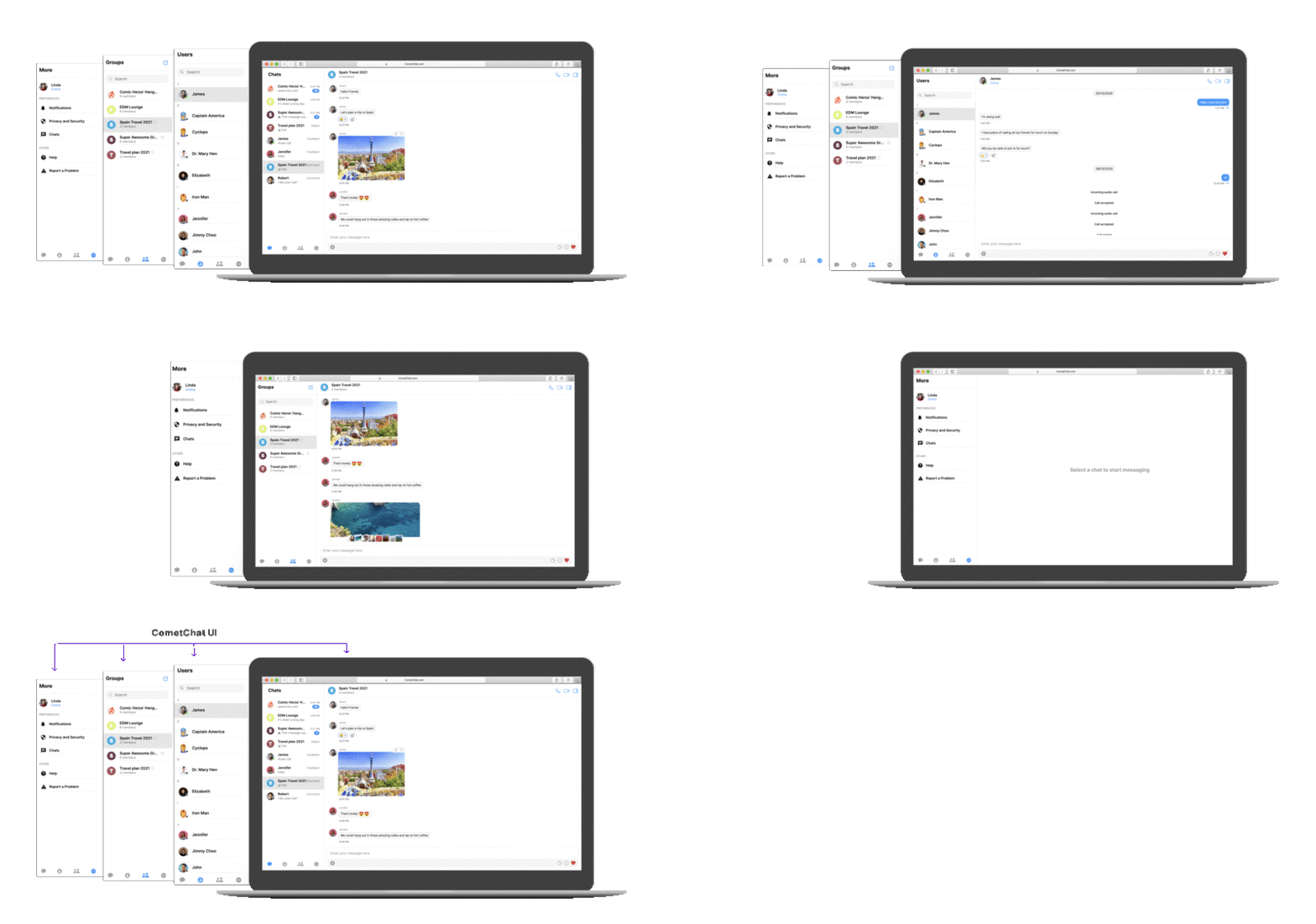
Using the `CometChatUI` component from the UI Kit, you can launch a fully functional chat application. In this component, all the UI Components are interlinked and work together to launch a fully functional chat on your website/application.
### Support for Vite
If you are using Vite, please update your `vite.config.js`
```js theme={null}
import { defineConfig } from 'vite'
import vue from '@vitejs/plugin-vue'
// https://vitejs.dev/config/
export default defineConfig({
plugins: [vue()],
resolve: {
extensions: ['.mjs', '.js', '.ts', '.jsx', '.tsx', '.json', '.vue'],
},
})
```
### Launch CometChat
Using the `CometChatUI` component from the UI Kit, you can launch a fully functional chat application. In this component, all the UI Components are interlinked and work together to launch a fully functional chat on your website/application.
 ### Usage
```js theme={null}
### Usage
```js theme={null}
```
## Checkout our Vue Chat sample app
Visit our [Vue Chat sample app](https://github.com/cometchat-pro/javascript-vue-chat-app) repo to see it in action.