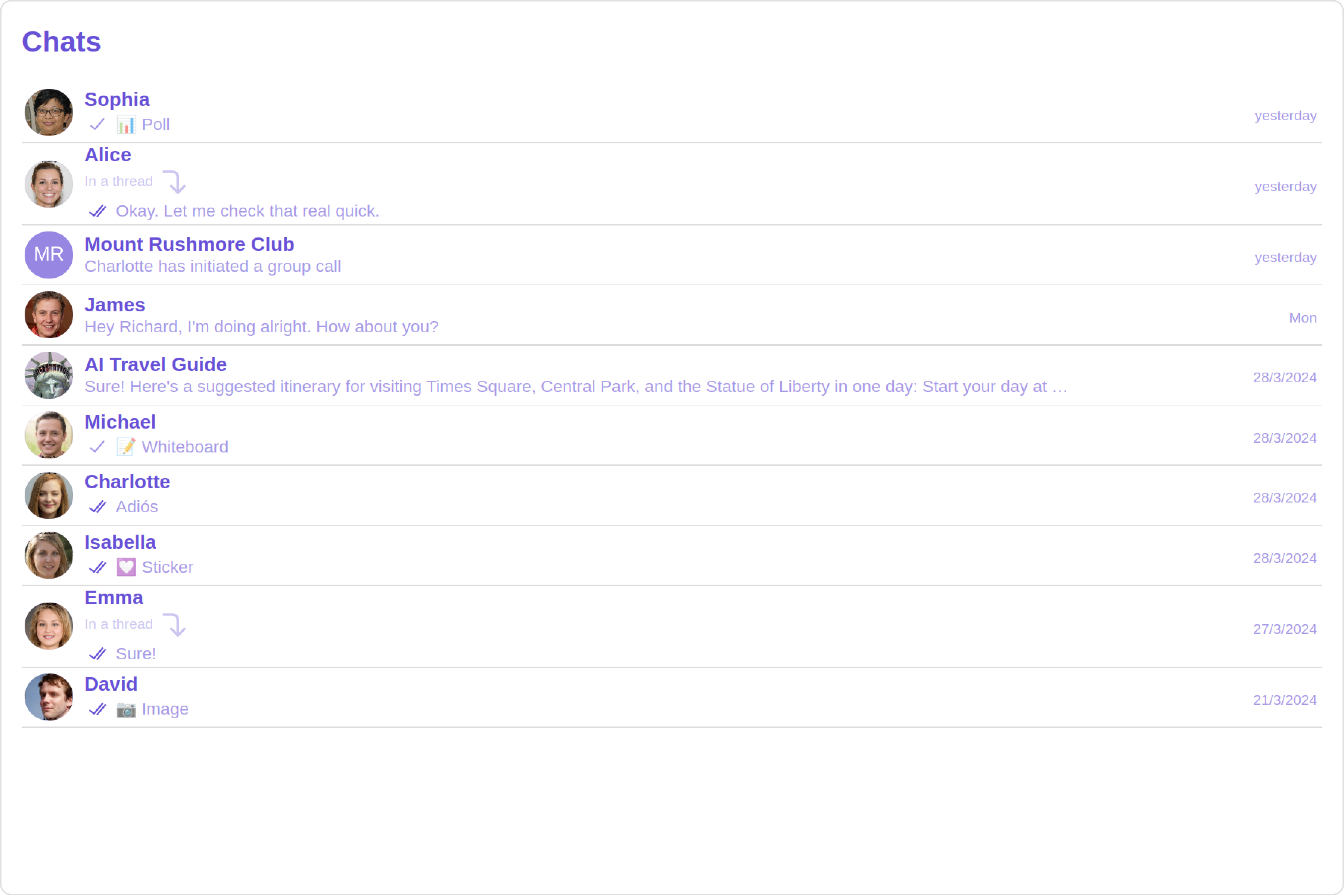
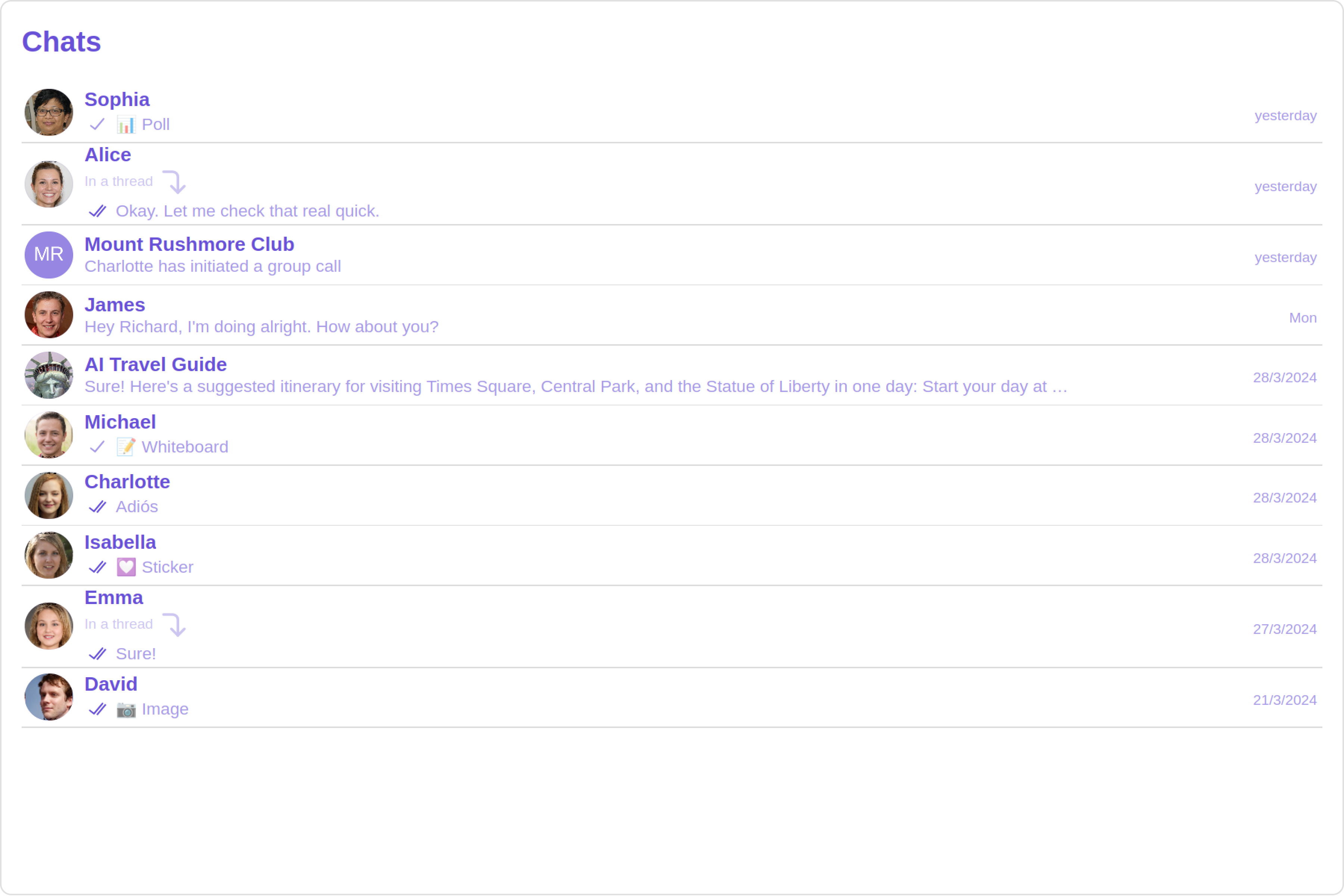
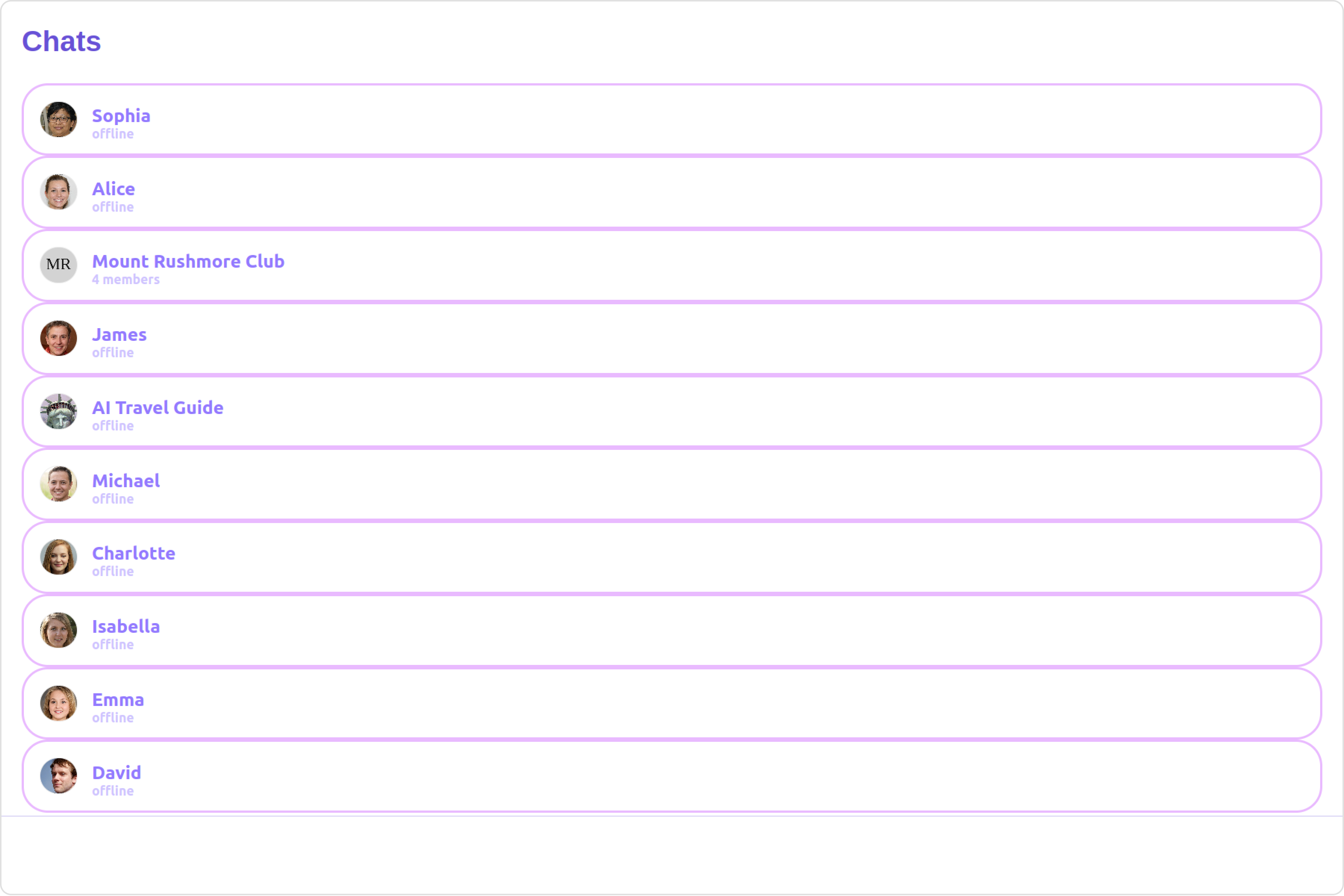
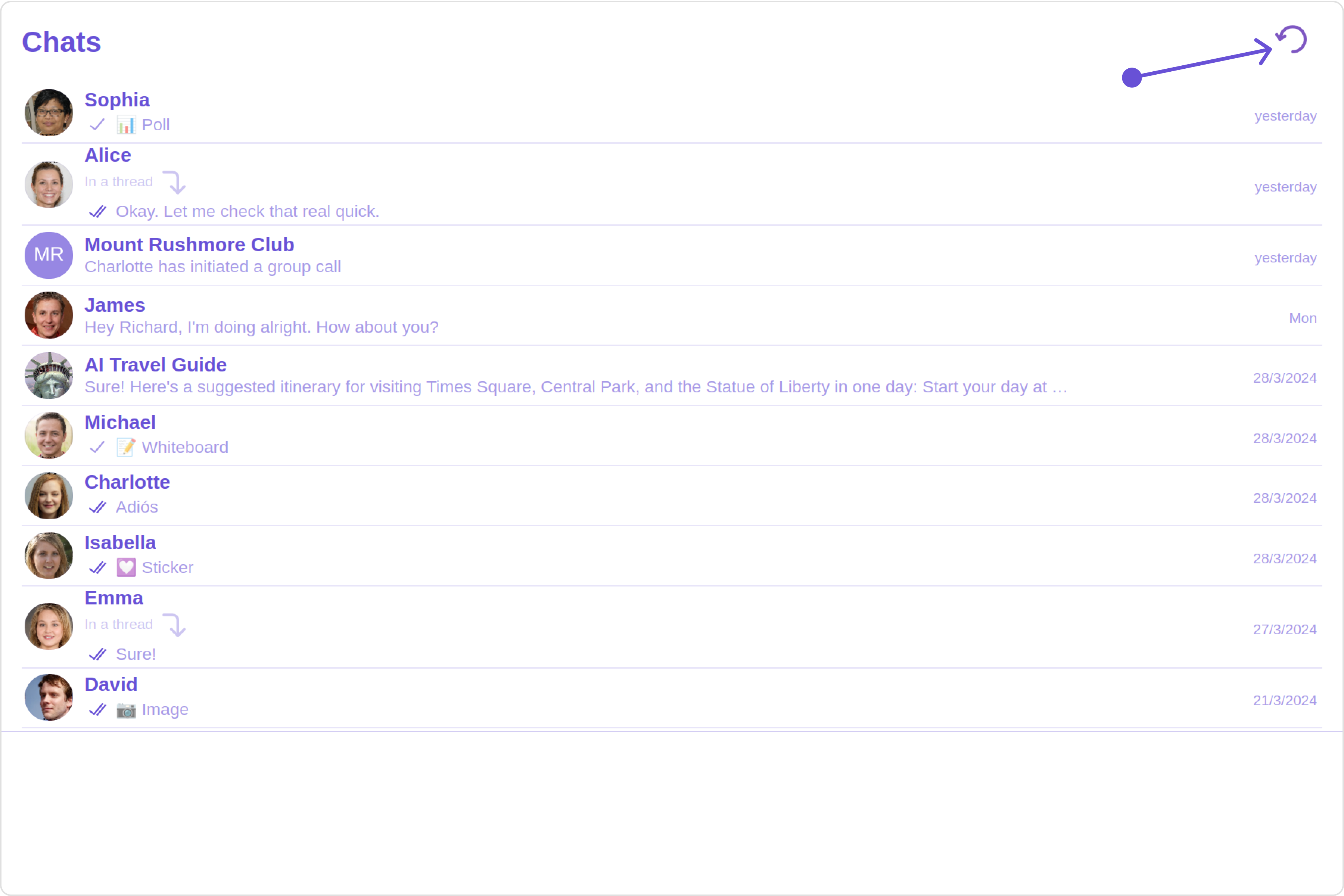
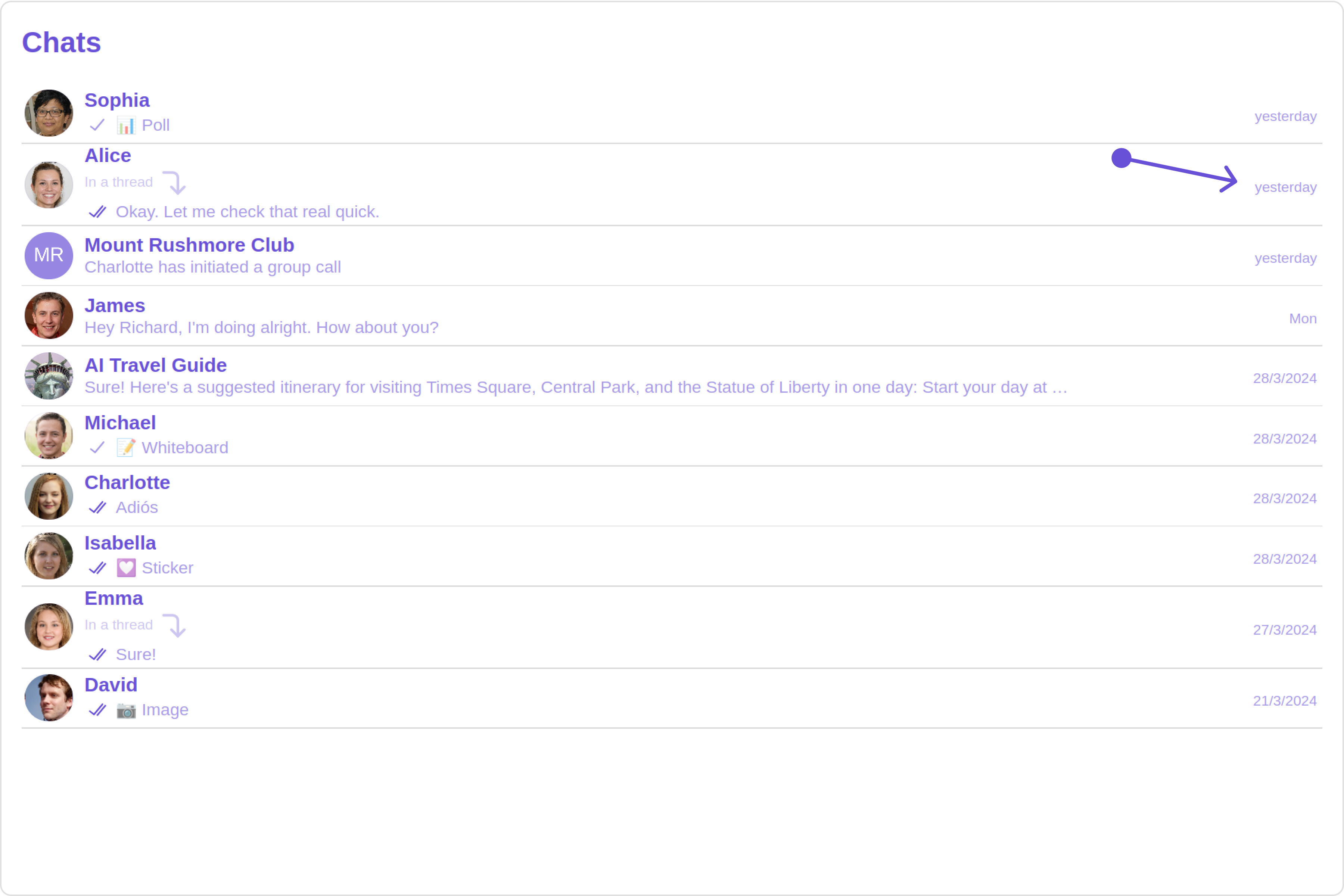
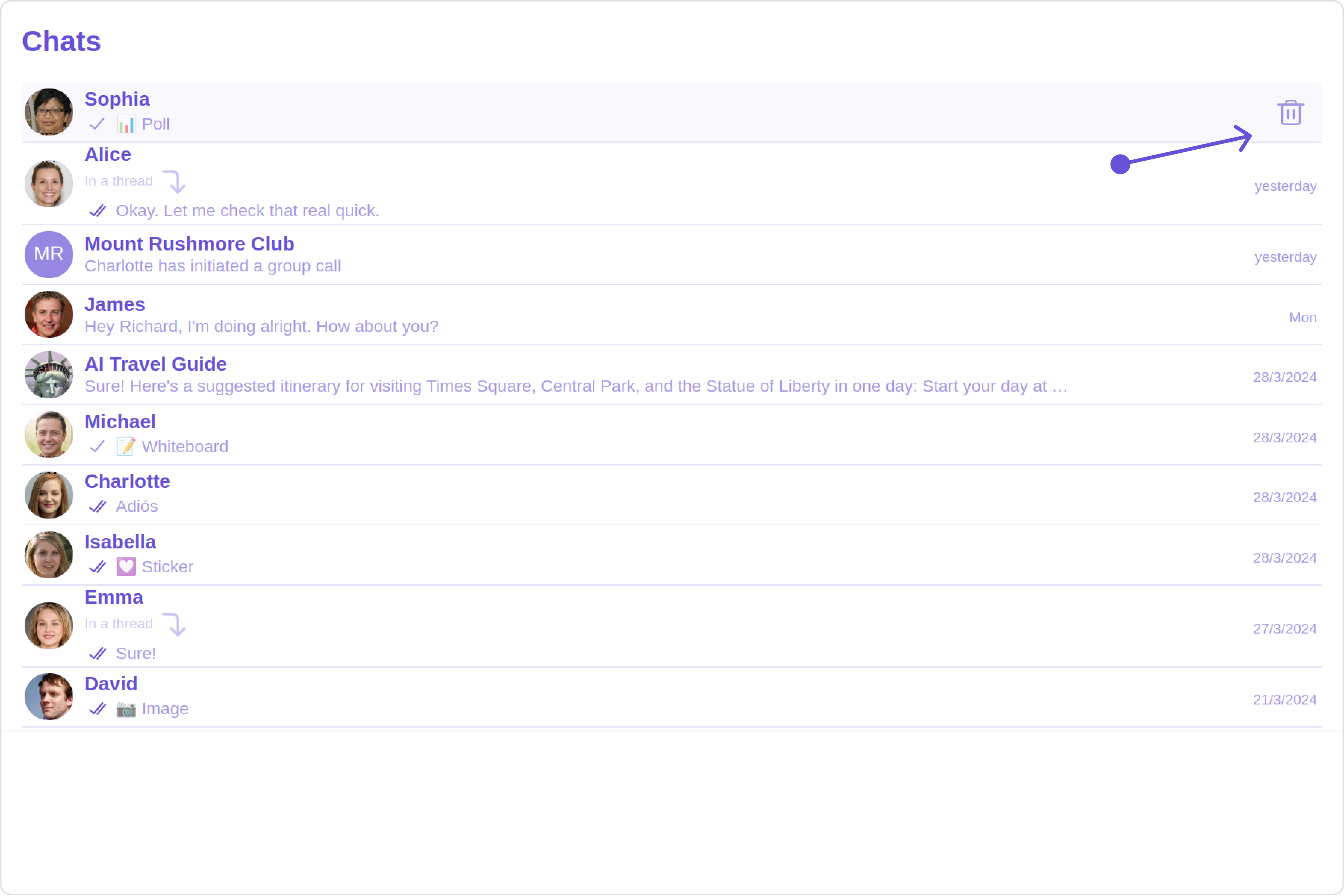
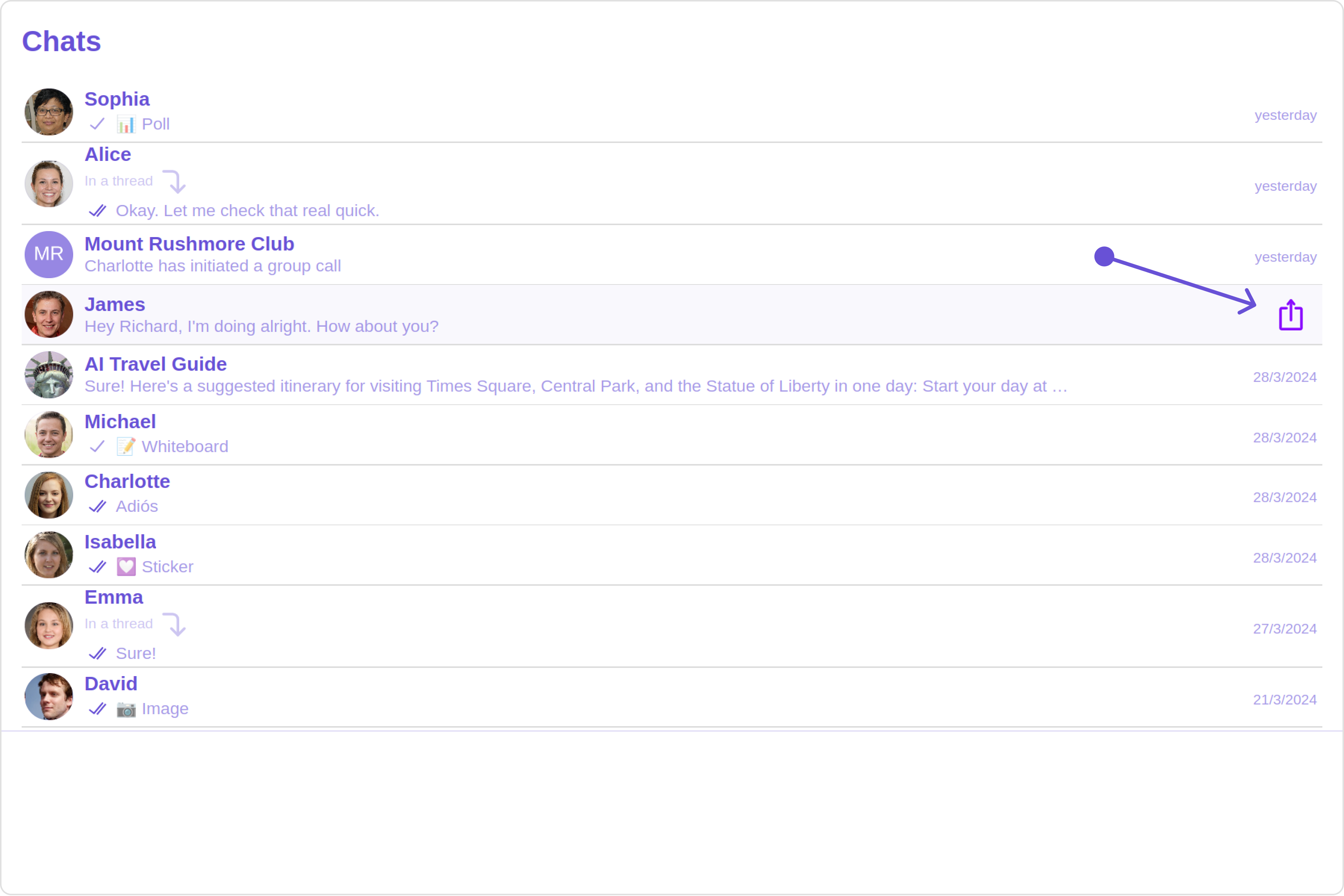
The Conversations is a Component, That shows all conversations related to the currently logged-in user,This component lists the most recent or latest conversations or contacts with whom you have exchanged messages. It provides a convenient way to quickly access and resume conversations with the people you have been in contact with recently.
Actions dictate how a component functions. They are divided into two types: Predefined and User-defined. You can override either type, allowing you to tailor the behavior of the component to fit your specific needs.
1. OnItemClick
OnItemClick is triggered when you click on a ListItem of the Conversations component. The OnItemClick action doesn’t have a predefined behavior. You can override this action using the following code snippet.
The OnSelect event is triggered upon the completion of a selection in SelectionMode. It does not have a default behavior. However, you can override its behavior using the following code snippet.
You can set ConversationsRequestBuilder in the Conversations Component to filter the conversation list. You can modify the builder as per your specific requirements with multiple options available to know more refer to ConversationRequestBuilder.You can set filters using the following parameters.
Conversation Type: Filters on type of Conversation, User or Groups
Limit: Number of conversations fetched in a single request.
WithTags: Filter on fetching conversations containing tags
Events are emitted by a Component. By using event you can extend existing functionality. Being global events, they can be applied in Multiple Locations and are capable of being Added or Removed.
Add Listener
public ccConversationDeleted!: Subscription;ngOnInit(): void {this.ccConversationDeleted =CometChatConversationEvents.ccConversationDeleted.subscribe((conversation: CometChat.Conversation) => {//your code})}
To fit your app’s design requirements, you can customize the appearance of the conversation component. We provide exposed methods that allow you to modify the experience and behavior according to your specific needs.
Using Style you can customize the look and feel of the component in your app, These parameters typically control elements such as the color, size, shape, and fonts used within the component.
1. Conversation Style
You can set the ConversationsStyle to the Conversations Component to customize the styling.
Sets all background style properties at once, such as color, image, origin and size, or repeat method. Reference link
boxShadow
Adds shadow effects around the component.
titleTextFont
Sets all the different properties of font for the heading text. Reference link
titleTextColor
Sets the foreground color of heading text.
loadingIconTint
Sets the tint or color applied to the loading indicator icon of the component
emptyStateTextFont
Sets all the different properties of font for the placeholder text. Reference link
emptyStateTextColor
Sets the foreground color of placeholder text displayed in the component.
errorStateTextFont
Sets all the different properties of font for the error message. Reference link
errorStateTextColor
Sets the foreground color of error message displayed in the component.
lastMessageTextFont
Sets all the different properties of font for the last message. Reference link
lastMessageTextColor
Sets the foreground color of the last message.
typingIndictorTextFont
Sets all the different properties of font for the typing indicator text. Reference link
typingIndictorTextColor
Sets the foreground color of typing indicator text
threadIndicatorTextFont
Sets all the different properties of font for the thread indicator text. Reference link
threadIndicatorTextColor
Sets the foreground color of thread indicator text.
onlineStatusColor
Sets the color of the status indicator representing the user’s online status
privateGroupIconBackground
Sets the background of the status indicator representing private groups.
passwordGroupIconBackground
Sets the background of the status indicator representing password protected groups.
2. Avatar Style
To apply customized styles to the Avatar component in the Conversations Component, you can use the following code snippet. For more information, visit Avatar Styles.
To apply customized styles to the Status Indicator component in the Conversations Component, you can use the following code snippet. For more information, visit Status Indicator Styles.
To apply customized styles to the Date component in the Conversations Component, you can use the following code snippet. For more information, visit Date Styles.
To apply customized styles to the Badge component in the Conversations Component, you can use the following code snippet. For more information, visit Badge Styles.
To apply customized styles to the Backdrop component in the Conversations Component, you can use the following code snippet, you can use the following code snippet. For more information, visit Backdrop Styles.
To apply customized styles to the delete dialog component in the Conversations Component, you can use the following code snippet. For more information, visit Delete dialog Styles.
To apply customized styles to the List Item component in the Conversations Component, you can use the following code snippet. For more information, visit List Item.
These are a set of small functional customizations that allow you to fine-tune the overall experience of the component. With these, you can change text, set custom icons, and toggle the visibility of UI elements.
Used to set icon shown in place of status indicator for password protected group
passwordGroupIcon="https://icon.svg"
privateGroupIcon
Used to set icon shown in place of status indicator for private group
privateGroupIcon="https://icon.svg"
SentIcon
Used to customize the receipt icon shown in the subtitle of the conversation item if hideReceipt is false and if the status of the last message in the conversation is sent
sentIcon="your custom sent icon"
Delivered Icon
Used to customize the receipt icon shown in the subtitle of the conversation item if hideReceipt is false and if the status of the last message in the conversation is delivered
deliveredIcon="your custom delivered icon"
Read Icon
Used to customize the receipt icon shown in the subtitle of the conversation item if hideReceipt is false and if the status of the last message in the conversation is read
readIcon="your custom read icon"
errorIcon
Asset URL for the error state indicating that an error has occurred when the message was in transit.
errorIcon="your custom error icon"
Hide Error
Used to hide error on fetching conversations
hideError=true
Hide Separator
Used to control visibility of Separators in the list view
hideSeparator=true
Disable UsersPresence
Used to control visibility of status indicator shown if user is online
disableUsersPresence=true
Hide Receipt
Used to control the visibility of read receipts without affecting the functionality of marking messages as read and delivered
hideReceipt=false
Disable Typing
Used to toggle visibility of typing indicator
disableTyping=true
Disable Mentions
Sets whether mentions in text should be disabled. Processes the text formatters If there are text formatters available and the disableMentions flag is set to true, it removes any formatters that are instances of CometChatMentionsFormatter.
disableMentions=true
disableSoundForMessages
When set to true, the component will not produce sound for all incoming messages.indicator
disableSoundForMessages=true
customSoundForMessages
mp3 file asset of your choice.
customSoundForMessages="your custom sound for messages"
For advanced-level customization, you can set custom views to the component. This lets you tailor each aspect of the component to fit your exact needs and application aesthetics. You can create and define your views, layouts, and UI elements and then incorporate those into the component.
Assigns the list of text formatters. If the provided list is not null, it sets the list. Otherwise, it assigns the default text formatters retrieved from the data source. To configure the existing Mentions look and feel check out CometChatMentionsFormatter
HashTagTextFormatter.ts
app.component.ts
app.component.html
import { CometChatTextFormatter } from "@cometchat/uikit-shared";class HashTagTextFormatter extends CometChatTextFormatter { constructor() { super(); // Set the tracking character to # this.setTrackingCharacter("#"); // Define regex patterns to find specific text patterns this.setRegexPatterns([ /\B#(\w+)\b/g, // Matches hashtags starting with # ]); // Define regex patterns to replace formatter text with original text this.setRegexToReplaceFormatting([ /#(\w+)/g, // Replace hashtags without formatting ]); // Set callback functions for key up and key down events this.setKeyUpCallBack(this.onKeyUp.bind(this)); this.setKeyDownCallBack(this.onKeyDown.bind(this)); // Set the re-render callback function this.setReRender(() => { // Trigger re-rendering of the message composer component // This could involve updating the UI with the formatted text console.log("Re-rendering message composer to update text content."); }); // Initialize composer tracking this.initializeComposerTracking(); } initializeComposerTracking() { // Get the reference to the input field (composer) const composerInput = document.getElementById("yourComposerInputId"); // Set the reference to the input field this.setInputElementReference(composerInput); } getCaretPosition(): number { if (!this.inputElementReference) return 0; const selection = window.getSelection(); if (!selection || selection.rangeCount === 0) return 0; const range = selection.getRangeAt(0); const clonedRange = range.cloneRange(); clonedRange.selectNodeContents(this.inputElementReference); clonedRange.setEnd(range.endContainer, range.endOffset); return clonedRange.toString().length; } setCaretPosition(position: number) { if (!this.inputElementReference) return; const range = document.createRange(); const selection = window.getSelection(); if (!selection) return; range.setStart( this.inputElementReference.childNodes[0] || this.inputElementReference, position ); range.collapse(true); selection.removeAllRanges(); selection.addRange(range); } override onKeyUp(event: KeyboardEvent) { if (event.key === this.trackCharacter) { this.startTracking = true; } // Custom logic to format hashtags as users type in the composer if (this.startTracking && (event.key === " " || event.key === "Enter")) { const caretPosition = this.getCaretPosition(); this.formatText(); this.setCaretPosition(caretPosition); } // Check if the last character typed was not a space or enter // and if the caret position is at the end, then we need to set start tracking to false if ( this.startTracking && event.key !== " " && event.key !== "Enter" && this.getCaretPosition() === this.inputElementReference?.innerText?.length ) { this.startTracking = false; } } formatText() { const inputValue = this.inputElementReference?.innerText || this.inputElementReference?.textContent || ""; const formattedText = this.getFormattedText(inputValue); // Update the composer with formatted text if (this.inputElementReference) { this.inputElementReference.innerHTML = formattedText || ""; // Trigger re-render of the composer this.reRender(); } } override onKeyDown(event: KeyboardEvent) { // Custom onKeyDown logic can be added here } override getFormattedText(inputText: string) { if (!inputText) { // Edit at cursor position and return void return; } // Perform custom logic to format text (e.g., formatting hashtags) return this.customLogicToFormatText(inputText); } customLogicToFormatText(inputText: string) { // Replace hashtags with HTML span elements to change color to green return inputText.replace( /\B#(\w+)\b/g, '<span style="color: #5dff05;">#$1</span>' ); } override getOriginalText(inputText: string) { // Sample implementation if (!inputText) { return ""; } // Remove formatting and return original text for (let i = 0; i < this.regexToReplaceFormatting.length; i++) { let regexPattern = this.regexToReplaceFormatting[i]; if (inputText) { inputText = inputText.replace(regexPattern, "#$1"); } } return inputText; }}export default HashTagTextFormatter;
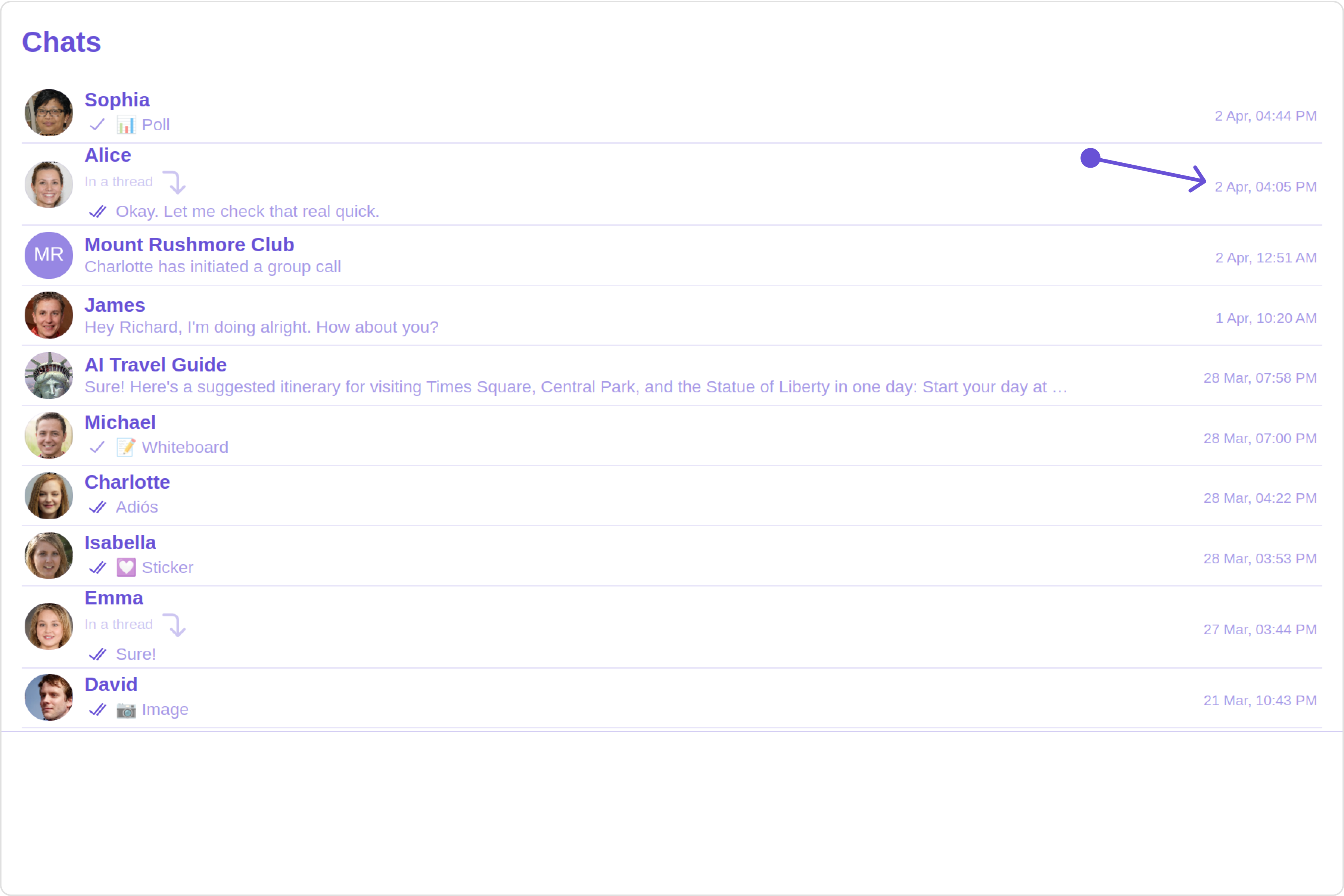
You can modify the date pattern to your requirement using DatePattern. datePattern formats date and time values according to a predefined standard, enhancing consistency and clarity in their presentation.DatePatterns describes a specific format or arrangement used to represent dates in a human-readable form.
Name
Description
time
Date format displayed in the format hh:mm a
DayDate
Date format displayed in the following format.1) If timestamp < 24hrs display “Today”
If timestamp < 48hrs display “Yesterday”
If timestamp < 7days display “EEE” i.e , SUNDAY
else display “d MMM, yyyy” |
| DayDateTime | Date format displayed in the following format.1) If timestamp < 24hrs display “hh:mm a”