

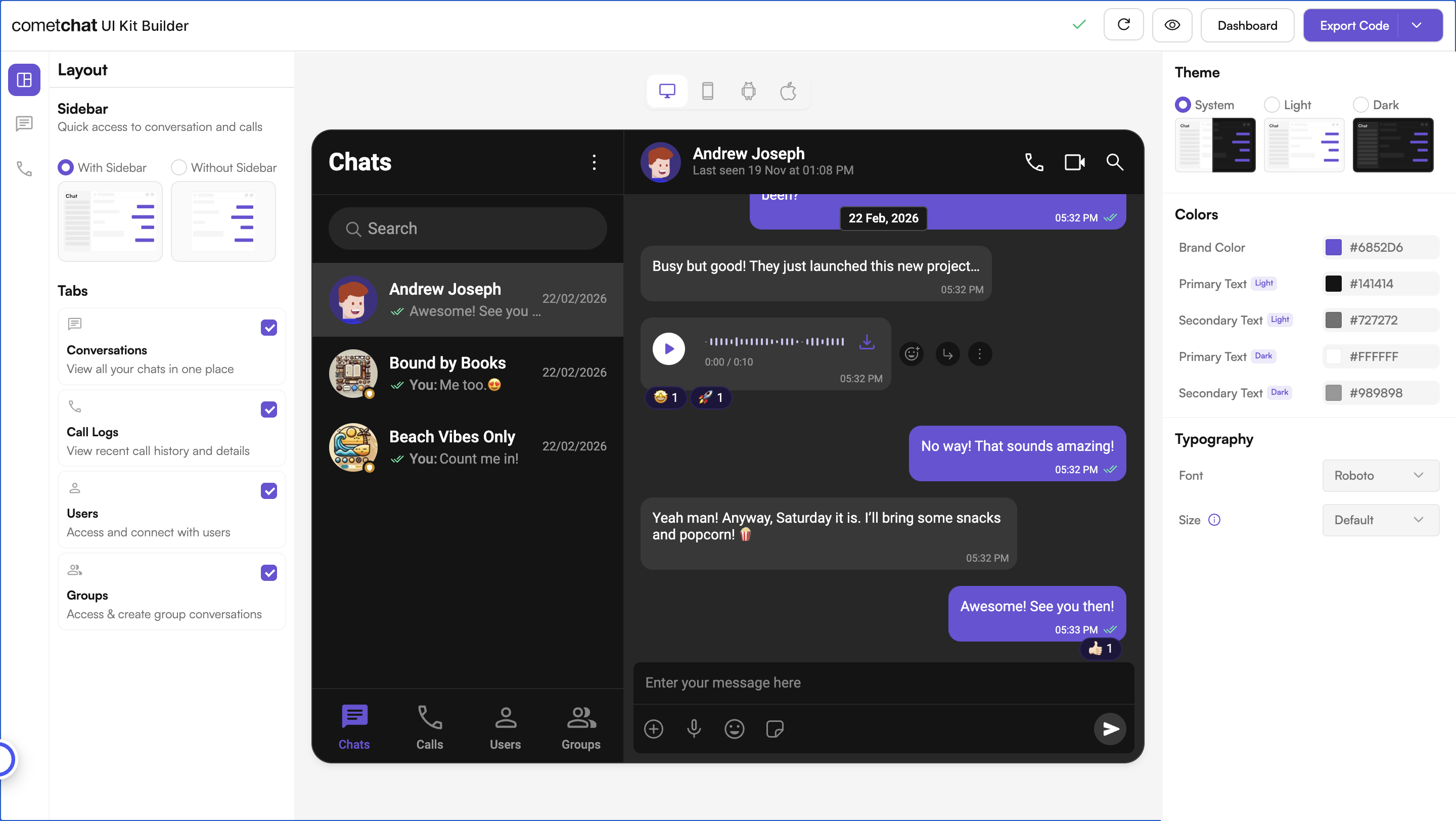
The UI Kit Builder exports a React code package. There is no separate
Next.js export — this guide covers dropping that package into a Next.js App
Router project, which mainly means keeping it out of server rendering.
Complete Integration Workflow
- Design Your Chat Experience - Use the UI Kit Builder to customize layouts, features, and styling.
- Review and Export - Review which features will be enabled in your Dashboard, toggle them on/off, and download the generated code package.
- Preview Customizations - Optionally, preview the chat experience before integrating it into your project.
- Integration - Integrate into your existing application.
- Customize Further - Explore advanced customization options to tailor the chat experience.
Requirements
Both Turbopack and webpack work, and no
next.config changes are needed.
Launch the UI Kit Builder
- Log in to your CometChat Dashboard.
- Select your application from the list.
- Navigate to Chat & Messaging → Get Started.
- Choose your platform and click Launch UI Kit Builder.
Review Your Export
When you click Export, a “Review Your Export” modal appears (Step 1 of 3). This lets you:- Review features — See which features will be enabled in your CometChat Dashboard based on your UI Kit configuration
- Toggle features — Turn individual features on/off before export
- AI User Copilot — Requires an OpenAI API key (you’ll configure this in the next step)
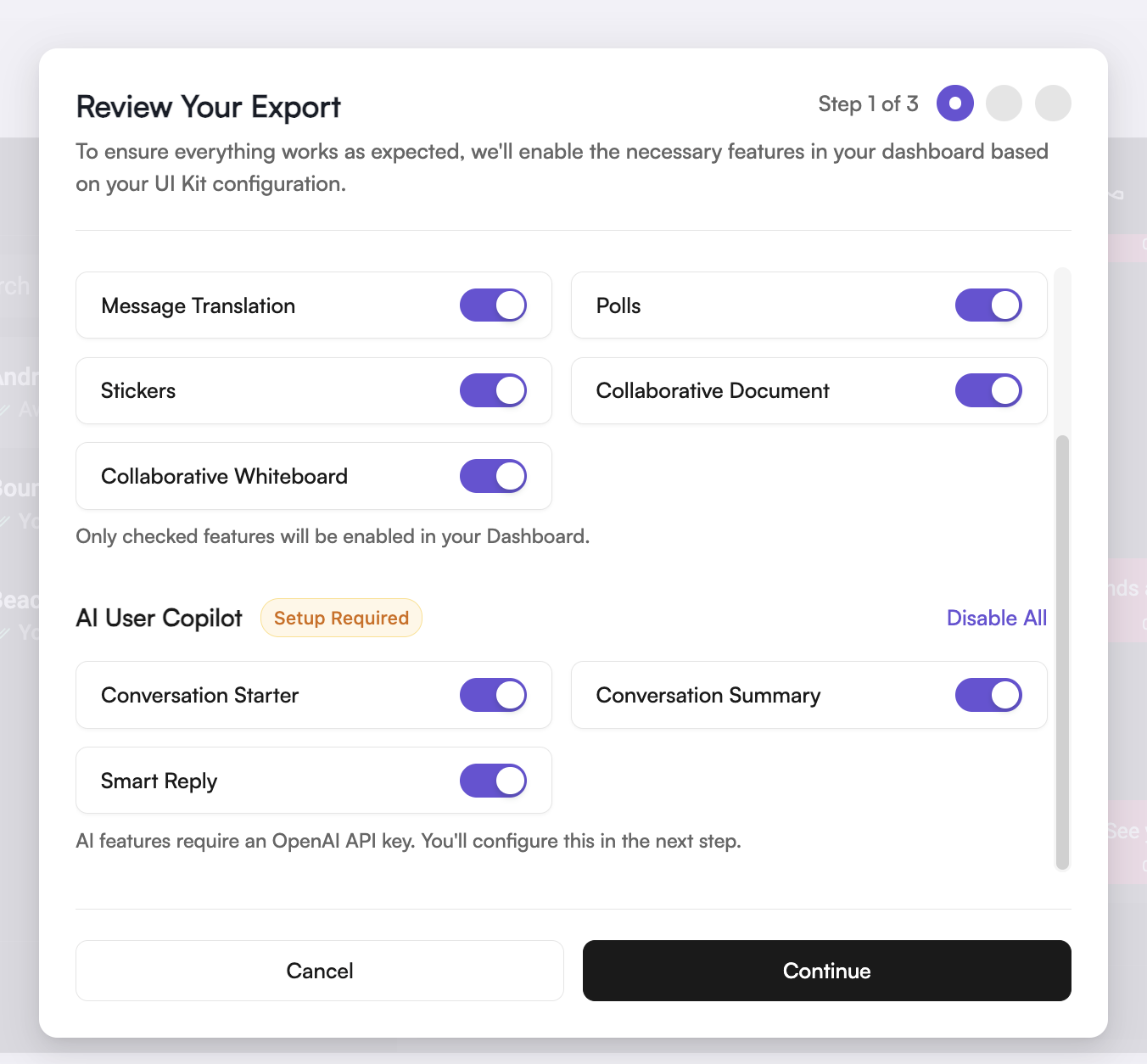
Only checked features will be enabled in your Dashboard. You can always modify
these settings later in the CometChat Dashboard.
Integrate into Your Project
Step 1: Install Dependencies
Step 2: Copy Two Folders
Copy both of these into your project’ssrc directory, next to src/app:
src/CometChat reads its configuration from src/builder.
Step 3: Exclude the Copied Folders from ESLint
Next.js’s lint rules are stricter than the ones theCometChat folder is written against, and npm run lint reports errors in it on Next.js 16. Since you don’t edit that folder, exclude both copied folders in eslint.config.mjs:
Step 4: Initialize CometChat UI Kit
Createsrc/app/CometChatNoSSR/CometChatNoSSR.tsx. Initialization also wires up SettingsProvider, which feeds your builder settings into the app.
Your app credentials (
APP_ID, AUTH_KEY, REGION) are prepopulated in the exported code. If you need different credentials, find them in the Credentials block of your app’s Overview section on the CometChat Dashboard.Upgrading from v6?
CometChatProvider no longer comes from a local
CometChat/context/CometChatContext, setupLocalization has moved to
builder/localization, and CometChat/utils/utils and
CometChat/CometChatApp no longer exist. The code above is the v7 replacement
for all four.Step 5: User Authentication
CometChat uses a UID (User ID) to identify each user. You can create users on the CometChat Dashboard, with a CometChat SDK method, or via the API — or use the pre-generated test userscometchat-uid-1 through cometchat-uid-5.
The app shell in Step 6 already handles this: it renders CometChatLogin until someone is logged in, and listens for SDK login and logout events afterwards.
To log a user in programmatically instead, do it inside the cached init promise, so it also runs only once:
Auth Key vs Auth TokenAuth Key is perfect for prototyping. For production apps, switch to Auth Token (
CometChatUIKit.loginWithAuthToken) for secure authentication. See Authentication and User Management for details.Step 6: Render the App Shell
v7 has noCometChatApp component. Create src/app/CometChatNoSSR/CometChatAppShell.tsx — it is the integration point, and it is yours to edit:
.App sets the size — change its style to fit the chat into part of your page. That is not enough on its own: the .cometchat element that CometChatProvider renders must fill it too, or the message list grows with its content and pushes the composer off-screen. builder/shell.css does this with:
shell.css also resets the body margin and font — copy the rule into your own stylesheet instead if you’d rather keep your page’s body styles.
Step 7: Disable SSR and Render the Component
LoadCometChatNoSSR.tsx with server-side rendering disabled, while keeping SSR for the rest of your app. ssr: false is only allowed in a Client Component, so create src/app/CometChatAppWrapper.tsx:
Step 8: Customize Through Settings
Layout and feature choices live insrc/builder/cometchat-builder-settings.json, which the dashboard writes at export time and which you can edit by hand afterwards. Anything the file omits falls back to a default, so partial files are safe.
Group action messages (joins, leaves, kicks, bans) are the exception: there is no settings key for them. They are on by default, and the only way to change that from code is the
showGroupActionMessages prop on CometChatHome — the same prop v6 had on CometChatApp. Whether they are generated at all is an app-level choice: Chat > Settings > Include Group Actions in the dashboard.
Every setting is described in UI Kit Builder Settings.
Step 9: Run the App
Troubleshooting
window is not defined during build or dev. Something is importing the chat outside the ssr: false boundary. Every import of CometChat/ or builder/ must be reached through CometChatNoSSR.
TypeScript cannot import the settings JSON. Add "resolveJsonModule": true to tsconfig.json and restart the dev server. builderSettings imports the JSON directly.
npm run lint reports errors inside src/CometChat. Add the two ignore entries from Step 3.
The chat renders but has no height. builder/shell.css is not imported, or your own CSS overrides it. See the sizing note in Step 6.
No call buttons in the message header. setCallingEnabled(true) is missing from Step 4. Calling is off by default, and the header hides both buttons entirely rather than rendering them inert.
Call buttons render but calls fail. @cometchat/calls-sdk-javascript is not installed.
Next Steps
Customizations
Adjust component props, behavior, and UI elements.
UI Kit Builder Settings
Understand the settings file and feature toggles.
Directory Structure
See how the exported code is organized.
Advanced Theming
Customize colors, typography, and styling to match your brand.