

Integration Steps
Step 1: Create a Custom API List
First, you need to create a list that defines your Custom API webhook configuration.- Navigate to the CometChat Dashboard and select your app.
- Go to Moderation → Settings from the left-hand menu.
- Click on the List tab.
- Click Add List to create a new list.
-
Fill in the required fields:
- Name: Enter a descriptive name for your custom moderation list (e.g.,
custom-moderation) - ID: Enter a unique identifier for the list (e.g.,
custom-moderation-list) - Category: Select Custom API from the dropdown
- URL: Enter the webhook URL where CometChat will POST message data for moderation
- Name: Enter a descriptive name for your custom moderation list (e.g.,
-
Enable Basic Auth (Optional but Recommended):
- Toggle on Enable Basic Auth for added security
- Enter your Basic Auth Username
- Enter your Basic Auth Password
- CometChat will include these credentials in the
Authorizationheader when calling your webhook
- Click Save to create the list.
Step 2: Configure Advanced Settings
Next, configure the context and error handling settings for your Custom API.- Navigate to Moderation → Settings.
- Click on the Advanced Settings tab.
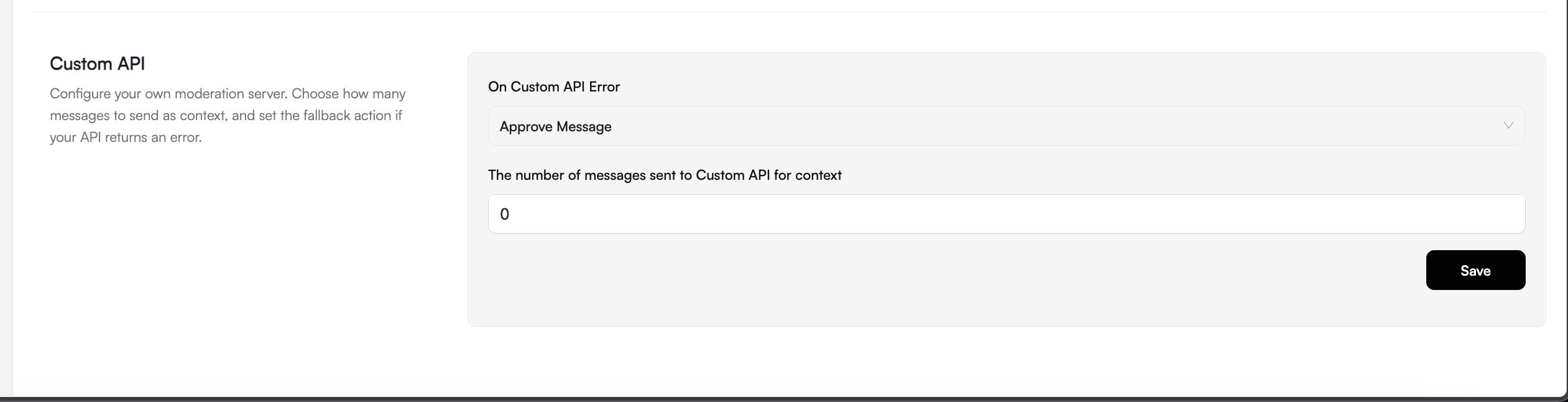
- Scroll down to the Custom API section.
-
Configure the following options:
-
The number of messages sent to Custom API for context:
- Set the number of previous messages to include as context (0-10)
- This enables context-aware moderation by providing conversation history
- Set to
0if you don’t need context and only want to moderate individual messages
-
On Custom API Error:
- Approve Message (Default): Messages are automatically approved if your webhook is unavailable or returns an error
- Block Message: Messages are blocked when your webhook is inaccessible, ensuring no unmoderated content passes through
-
The number of messages sent to Custom API for context:
- Click Save to apply the settings.
Step 3: Create a Moderation Rule
Now, map your Custom API list to a moderation rule to activate the moderation.- Navigate to Moderation → Rules.
- Click Create New Rule.
-
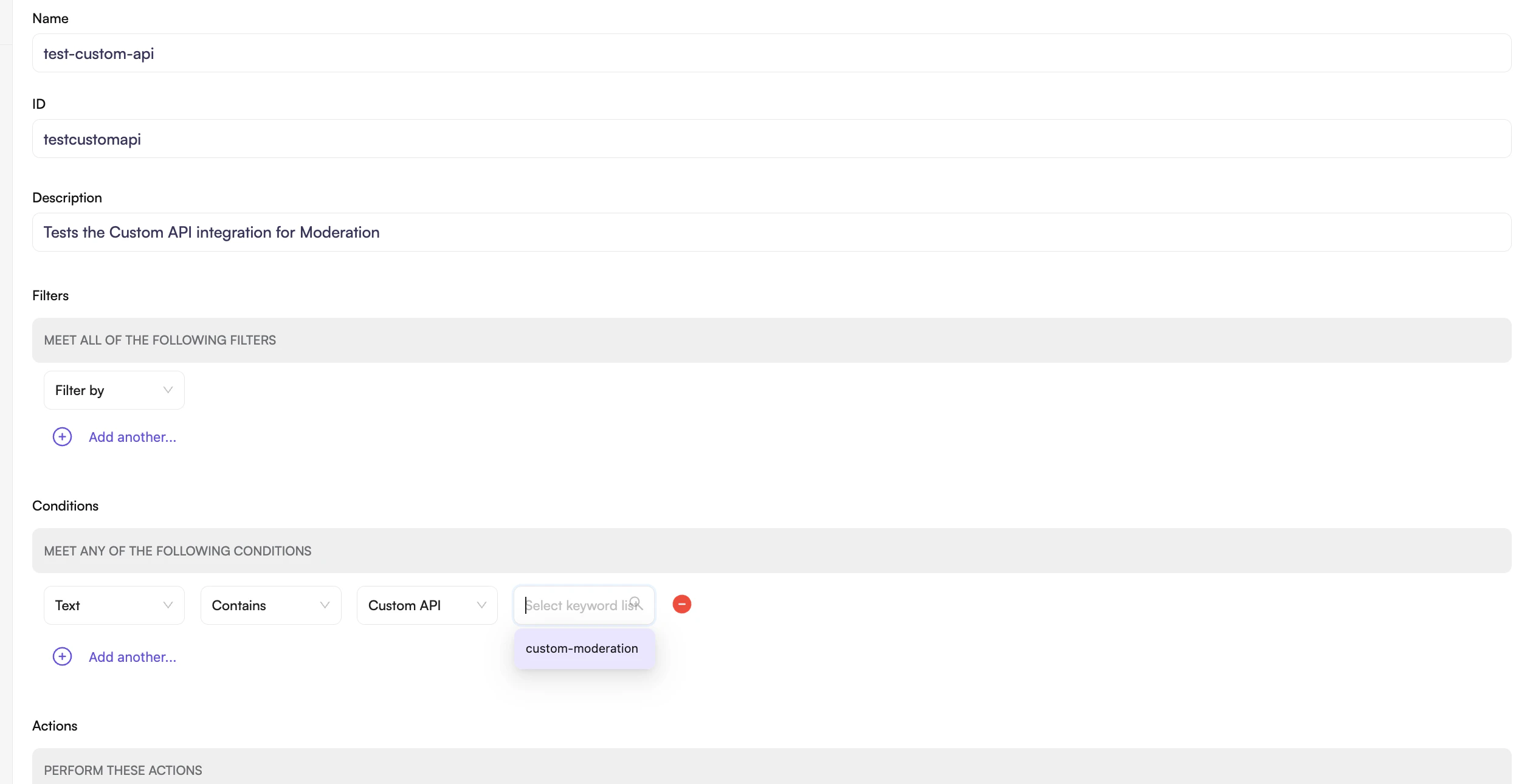
Fill in the mandatory fields:
- Name: Enter a name for the rule (e.g.,
test-custom-api) - ID: Enter a unique identifier (e.g.,
testcustomapi) - Description: Optionally describe what this rule does
- Name: Enter a name for the rule (e.g.,
-
Configure the Conditions:
- Select the content type to moderate (e.g., Text)
- Select Contains
- Select Custom API
- Choose the Custom API list you created in Step 1 from the dropdown
- Set the confidence threshold (e.g.,
greater than 80%)- Higher percentages result in stricter matching
- Lower percentages allow more content to be flagged
- Configure the Actions to perform when content is flagged (block, flag for review, etc.).
- Click Save to create the rule.
- Enable the rule by toggling it on.
Webhook Request
When a message is sent, CometChat will POST the message data to your configured webhook URL.Headers
Payload Structure
The payload includes:- Context messages: Previous messages in the conversation (as plain text) based on your context window setting
- Latest message: The message being moderated (full message object with all details)
Webhook Response
Your webhook must return a JSON response indicating the moderation decision.When content violates rules
When content is safe
Response Fields
The
confidence value returned by your webhook is compared against the confidence threshold configured in your moderation rule. For example, if your rule is set to trigger when confidence is “greater than 80%” and your webhook returns 0.95, the rule action will be executed.