Documentation Index Fetch the complete documentation index at: https://www.cometchat.com/docs/llms.txt
Use this file to discover all available pages before exploring further.
AI Integration Quick Reference
Field Value Package @cometchat/chat-uikit-reactFramework React.js Components CometChatMessageHeader, CometChatMessageList, CometChatMessageComposerLayout Single chat window — no sidebar, no conversation list Prerequisite Complete React.js Integration Steps 1–5 first Pattern Support chat, embedded widgets, focused messaging
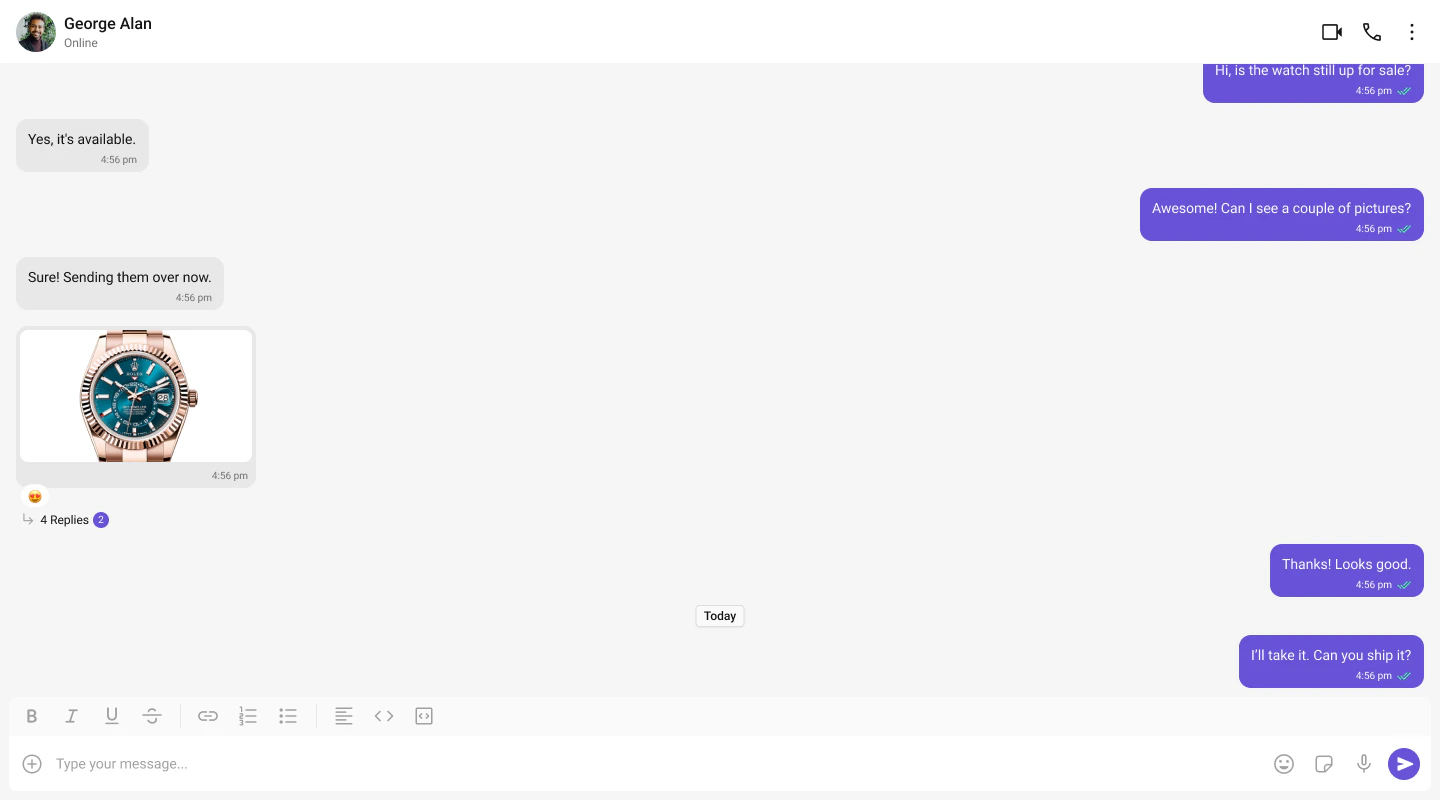
This guide builds a single chat window — no sidebar, no conversation list. Users go directly into a one-to-one or group chat. Good for support chat, embedded widgets, or any focused messaging experience.
This assumes you’ve already completed React.js Integration (project created, UI Kit installed, init + login working, CSS imported).
Fork the sandbox, insert your CometChat credentials (App ID, Region, Auth Key), and preview the UI in real time.
What You’re Building
Three components stacked vertically:
Chat header — displays recipient name, avatar, online status, and optional call buttons
Message list — real-time chat history with scrolling
Message composer — text input with media, emojis, and reactions
No new files to create — everything goes in App.tsx and App.css.
Step 1 — Update App.tsx and App.css
The app fetches a user (or group) on mount and renders the three message components.
import { useEffect , useState } from "react" ;
import {
CometChatMessageComposer ,
CometChatMessageHeader ,
CometChatMessageList ,
} from "@cometchat/chat-uikit-react" ;
import { CometChat } from "@cometchat/chat-sdk-javascript" ;
import "./App.css" ;
import "@cometchat/chat-uikit-react/css-variables.css" ;
function App () {
const [ selectedUser , setSelectedUser ] = useState < CometChat . User | undefined >( undefined );
const [ selectedGroup , setSelectedGroup ] = useState < CometChat . Group | undefined >( undefined );
useEffect (() => {
// Fetch the user whose chat you want to load
const UID = "cometchat-uid-1" ;
CometChat . getUser ( UID ). then (
( user ) => setSelectedUser ( user ),
( error ) => console . log ( "User fetching failed with error:" , error )
);
// To load a group chat instead, uncomment below:
// const GUID = "GUID";
// CometChat.getGroup(GUID).then(
// (group) => setSelectedGroup(group),
// (error) => console.log("Group fetching failed with error:", error)
// );
}, []);
return (
<>
{ selectedUser || selectedGroup ? (
< div className = "messages-wrapper" >
< CometChatMessageHeader user = { selectedUser } group = { selectedGroup } />
< CometChatMessageList user = { selectedUser } group = { selectedGroup } />
< CometChatMessageComposer user = { selectedUser } group = { selectedGroup } />
</ div >
) : (
< div className = "empty-conversation" >
Set a user or group UID in App.tsx to start chatting
</ div >
) }
</>
);
}
export default App ;
@import url ( "@cometchat/chat-uikit-react/css-variables.css" );
#root {
text-align : center ;
width : 100 vw ;
height : 100 vh ;
background-color : #282c34 ;
}
.messages-wrapper {
width : 100 % ;
height : 100 vh ;
display : flex ;
flex-direction : column ;
}
.empty-conversation {
height : 100 vh ;
width : 100 % ;
display : flex ;
justify-content : center ;
align-items : center ;
background : var ( --cometchat-background-color-03 , #F5F5F5 );
color : var ( --cometchat-text-color-secondary , #727272 );
font : var ( --cometchat-font-body-regular , 400 14 px Roboto);
}
.cometchat .cometchat-message-composer {
border-radius : 0 px ;
}
Key points:
CometChat.getUser(UID) fetches the user object from the SDK — you need a real user object, not a manually constructed one.
Pass either user or group to the message components, never both.
The highlighted lines show where to set the UID or swap to group chat.
Switching Between User and Group Chat
To load a group chat instead of one-to-one, replace the getUser call with getGroup:
const GUID = "GUID" ; // Replace with your actual Group ID
CometChat . getGroup ( GUID )
. then (( group ) => setSelectedGroup ( group ))
. catch (( error ) => console . error ( "Failed to fetch group:" , error ));
You can also determine this dynamically — for example, based on a route parameter or a selection from another part of your app.
Step 2 — Run the Project
You should see the chat window load with the conversation for the UID you set.
Next Steps
Theming Customize colors, fonts, and styles to match your brand
Components Overview Browse all prebuilt UI components
React.js Integration Back to the main setup guide
Core Features Chat features included out of the box