

Push Notifications SDK for iOS
Source, and example apps for a calls-only app and a chat-and-calls app.
What this guide covers
- APNs setup and the CometChat provider (dashboard, Xcode capabilities).
- Adding the SDK’s products and initialising it; the SDK registers and unregisters the push tokens itself.
- Chat pushes: foreground banners, quick reply, delivery receipts and taps, handled by the SDK.
- The Notification Service Extension for delivery receipts, avatars and campaign images.
- App icon badge count from the
unreadMessageCountfield. - Call pushes: ringing through the SDK’s Calls product, covered on Push Ringing.
How APNs and CometChat fit together
- Why APNs? Apple issues the device tokens and delivers the pushes: a regular APNs token for chat notifications and, through PushKit, a VoIP token for calls.
- Why a CometChat provider? The provider holds your APNs key and tells CometChat how to send to your app. The SDK registers each token against its id when the user logs in.
- What the SDK does with a push. It presents chat notifications in the foreground, routes taps to your delegate, sends quick replies and campaign receipts, and (with its extension base class) marks messages delivered. VoIP pushes go to the Calls product, which rings the device through CallKit.
Requirements
1. Prepare Apple and CometChat
- CometChat dashboard: go to Notifications → Settings, enable Push Notifications, click Add Credentials and add an APNs provider with your
.p8auth key (Key ID, Team ID, Bundle ID). Copy its Provider ID.
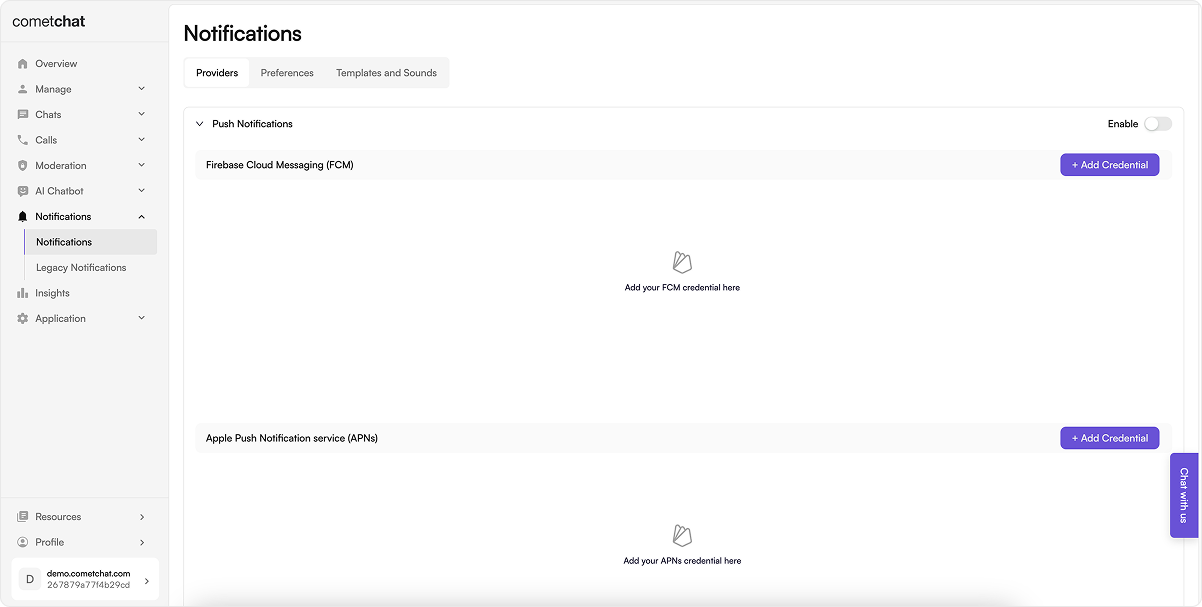
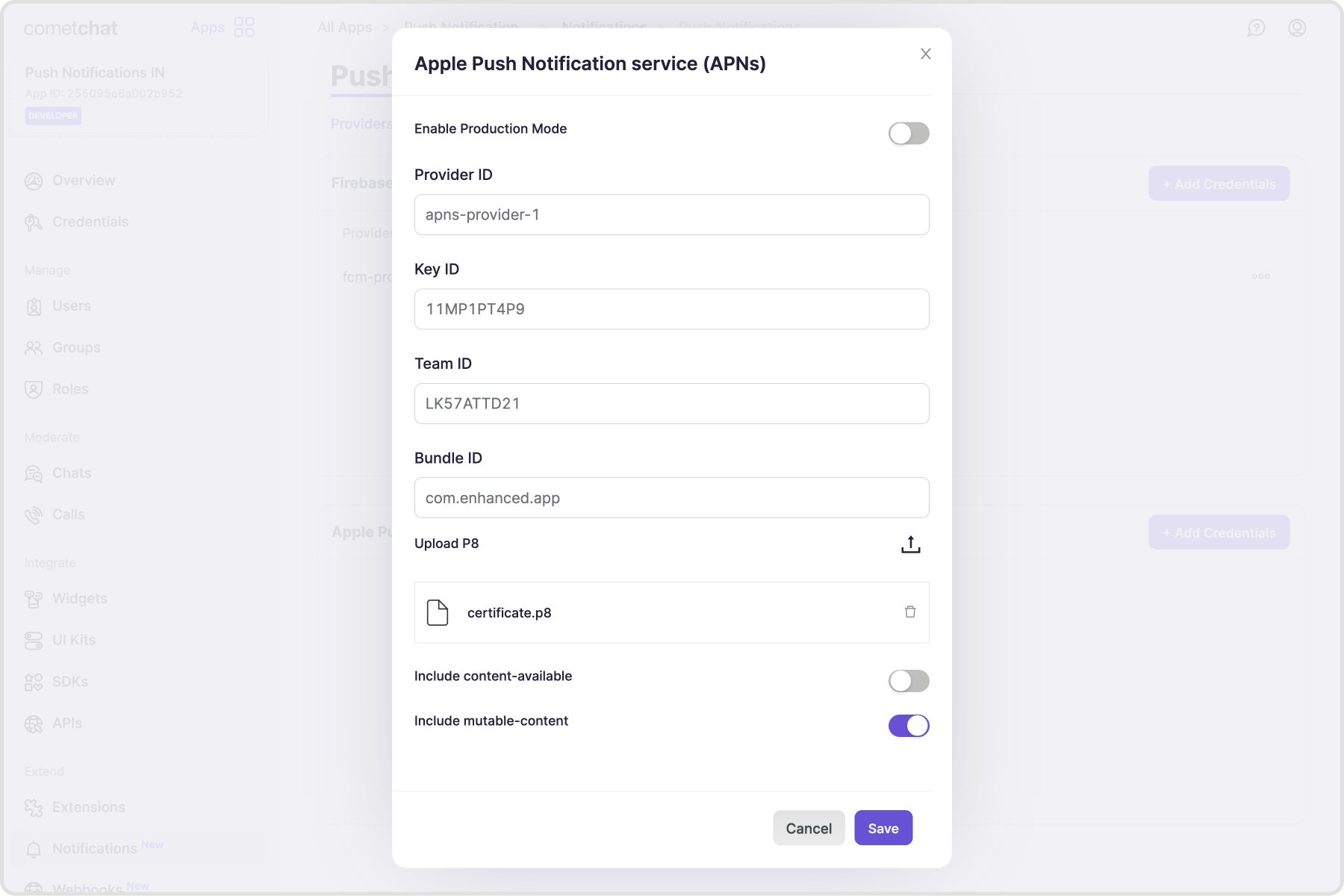
The SDK registers the APNs device token and the VoIP token under one provider id. Use a
.p8 auth key: a .p12 certificate provider serves only one of the two tokens.The provider’s Bundle ID must be your app’s bundle ID, and its APNs environment must match the build: Enable Production Mode off for builds run from Xcode, on for TestFlight and App Store builds. On a mismatch APNs rejects the pushes.-
Xcode, in your app target’s Signing & Capabilities:
- Push Notifications.
- Background Modes → Remote notifications, so silent pushes (campaign receipts, badge updates) reach the app.
- Background Modes → Voice over IP, if calls should ring; see Push Ringing for the rest of what calls need.
- App Groups, if you add the Notification Service Extension.
-
App constants: note your CometChat App ID and Region, and the Provider ID. All three go into
PNConfiguration.
2. Add the SDK
The SDK ships as three products, released together. Add Core always, and the others for what your app does:
A chat-only app adds Core and Chat; a calls-only app adds Core and Calls; most apps add all three.
The SDK is distributed with Swift Package Manager and needs iOS 15.1 or later. In Xcode, File → Add Package Dependencies, enter:
3. Initialise the SDK
Callinitialize(config:) in application(_:didFinishLaunchingWithOptions:), on every launch, before the user logs in:
- Token registration on login and logout only runs in a launch where
initializeran. initializesets the SDK as theUNUserNotificationCenterdelegate. iOS requires that delegate before launch finishes, or the tap that launched the app is lost.- With the Calls product,
initializealso creates the PushKit registry, which iOS requires by the end of launch. - It asks for notification permission, registers for remote notifications, installs every linked product and saves the configuration, so a launch started by a push still knows your app.
- It sets the notification categories to the SDK’s own
MessageCategory(for quick reply). That replaces any categories your app set before; add yours back afterinitialize, includingMessageCategory.
- Swift
- Objective-C
AppDelegate.swift
AppDelegate attached with @UIApplicationDelegateAdaptor.
PNConfiguration(appId:region:…) takes every option as a defaulted parameter; from Objective-C, or to chain setters, use PNConfiguration.builder(appId:region:) and build(). With the Chat product, PNConfigurationBuilder.from(appId:settings:) starts a builder from the Chat SDK’s AppSettings.
4. Forward the APNs token
The APNs device token arrives in yourAppDelegate; hand it to the SDK. The token is cached, so it does not matter whether it arrives before initialize or before login: the SDK registers it once someone is logged in.
- Swift
- Objective-C
AppDelegate.swift
registerDeviceToken also takes an optional completion with a PNResult<String>. The VoIP token needs no code: the Calls product receives it from its own PushKit registry.
A calls-only app (Core and Calls, no Chat) registers only the VoIP token. It can skip this step and set
requestNotificationPermission: false, since calls ring without notification permission.UNUserNotificationCenter delegate, set it after initialize and forward to handleWillPresentNotification(_:completionHandler:) and handleNotificationResponse(_:completionHandler:), or the SDK no longer sees foreground notifications and taps.
5. Handle notification taps
One delegate object serves every product. AdoptCometChatPushNotificationsDelegate, plus CometChatPushNotificationsChatDelegate if you link the Chat product, and implement only what you need; every method is optional.
- Swift
- Objective-C
PushDelegate.swift
Suppress notifications for the open chat. While a conversation is on screen, its notifications are not shown in the foreground:
6. Tokens, login and logout
You do not register push tokens. When the user logs in to the Chat or Calls SDK, the SDK registers the APNs device token and, with the Calls product, the VoIP token, under yourproviderId. It registers a rotated token again, and if someone is already logged in when initialize runs it registers the cached tokens then.
To log out, unregister first and wait for it: the request is authenticated with the user’s session, so it has to finish before that session ends.
.failed) and clears the app badge. The tokens stay cached on the device and are registered again for the next user who logs in.
registerTokens(completion:) registers the cached tokens on demand. autoRegisterTokens: false stops registration in initialize and on login, and unregistration on logout; a token delivered or rotated while a user is logged in is still registered.
7. Notification Service Extension
The extension gives chat notifications delivery receipts, the sender’s avatar, campaign images and plain text in place of markdown. Delivery receipts for chat messages come from the extension, so add it if your app shows read and delivered ticks.1
Add the target
File → New → Target → Notification Service Extension.
2
Link Core and Chat only
Add
CometChatPushNotificationsSwift and CometChatPushNotificationsChat to the extension target, and never the Calls product: an extension runs under a memory limit the Calls SDK does not fit in.3
Share an App Group
Add the same App Group (for example
group.com.yourcompany.yourapp) to both the app target and the extension target, and pass it as extensionGroupID in PNConfiguration.4
Subclass the base class
Replace the generated class:
NotificationService.swift
5
Point the extension at the App Group
Add a String entry
CometChatExtensionGroupID set to your App Group id in the extension’s Info.plist, or override the extensionGroupID property.stripsMarkdown and attachesMedia (both true), and finalizeContent(_:) to change the content last, after receipts, media and markdown.
8. Badge count
CometChat’s push payload can carry anunreadMessageCount field: the total unread messages across all conversations for the logged-in user.
- Go to CometChat Dashboard → Notifications → Settings → Preferences → Push Notification Preferences.
- Scroll to the bottom and enable the Unread Badge Count toggle.
enableBadgeCount on (the default), the SDK sets the app icon badge from unreadMessageCount when it is a number: on a chat notification shown in the foreground (with showInAppNotifications on), a silent push handed to handleBackgroundNotification, and a tap. clearBadgeCount() does nothing while enableBadgeCount is off. Clear it with CometChatPushNotifications.shared.clearBadgeCount(), for example when the app becomes active; logout clears it too.
To set the badge on every delivered notification, including in the background, and also when the payload carries the count as a string, set it in the extension:
NotificationService.swift
9. Message pushes
Handled by the SDK, with nothing to build:- Foreground: a banner, unless that conversation is open (
setActiveConversation) orshowInAppNotificationsisfalse. - Quick reply: the SDK registers the notification category
MessageCategorywith a Reply action. A reply typed there is sent as a text message into the conversation by the Chat product. - Delivery receipts, avatars, markdown: from the Notification Service Extension.
- Taps: routed to
navigateToChat(for:); see Handle notification taps.
handleBackgroundNotification and in the extension) and clicked (on tap) when the Chat product is linked; a tap calls navigateToNotificationsFeed().
CometChatPushNotifications.parseNotificationInfo(from:) reads the sender, receiver and body out of a raw payload, and isCampaignNotification(userInfo:) tells campaign pushes apart.
10. Call pushes
Handled by the Calls product: it owns the PushKit registry, rings through CallKit in every app state, connects to the call while it rings, and calls yourpresentCall(_:) when the user answers, where you join the call. It sends declines and timeouts, and CallKit records missed calls in Recents.
Setup, capabilities, joining and customising CallKit are on Push Ringing. Starting and ending calls is on Ringing.
Ring readiness and diagnostics
After sign-in, check what could silence a notification or a ring:getDiagnostics() returns a redacted dictionary of everything that affects delivery (products, login state, cached tokens, background modes) for bug reports. verifyPushSetup(completion:) registers the tokens and reports the outcome.
FCM instead of APNs
APNs is the recommended mode on iOS, and FCM mode suits chat-only apps. If your app already routes APNs through Firebase and does not ring calls, configure Firebase as usual and forward the FCM token; the SDK links nothing from Firebase:providerId as the other tokens; 2.0 takes a single provider id for every token. An FCM provider cannot deliver VoIP pushes, so an app that rings calls must use an APNs provider instead.
Upgrading from 1.x
2.0 is a breaking release:
Ringing itself moved from the Chat SDK’s call flow to the Calls SDK; see Migrating from legacy ringing.
Testing checklist
- Install on a physical device and allow notifications.
- Log in, and check
onPushTokenRegisteredfires (orgetDiagnostics()). - Send a message from another user:
- Foreground: a banner appears unless that chat is open.
- Background or killed: tapping it opens the right conversation.
- Reply from the notification: the message arrives in the conversation.
- With the extension: the sender sees the message delivered, and the avatar shows.
- With the Calls product, call from another user with the app in the foreground, in the background, killed, and with the phone locked; see Push Ringing.
- Log out and confirm no further pushes arrive; log in as another user and confirm theirs do.
Troubleshooting
Related
Push Notifications Overview
Dashboard setup, providers and templates.
Push Ringing
Incoming calls through PushKit and CallKit with the same SDK.
Manual APNs integration
The hand-wired alternative, with the UI Kit and legacy ringing.