
Documentation Index

Fetch the complete documentation index at: https://www.cometchat.com/docs/llms.txt

Use this file to discover all available pages before exploring further.

  • Requires: CometChat SDK and UI Kit both configured
  • Implementation: Handle notification tap in AppDelegate or SceneDelegate
  • Parse payload: Extract call session ID from notification payload
  • Launch: Present CometChatIncomingCall view controller
  • Related: Ringing · Push Notifications · UI Kit
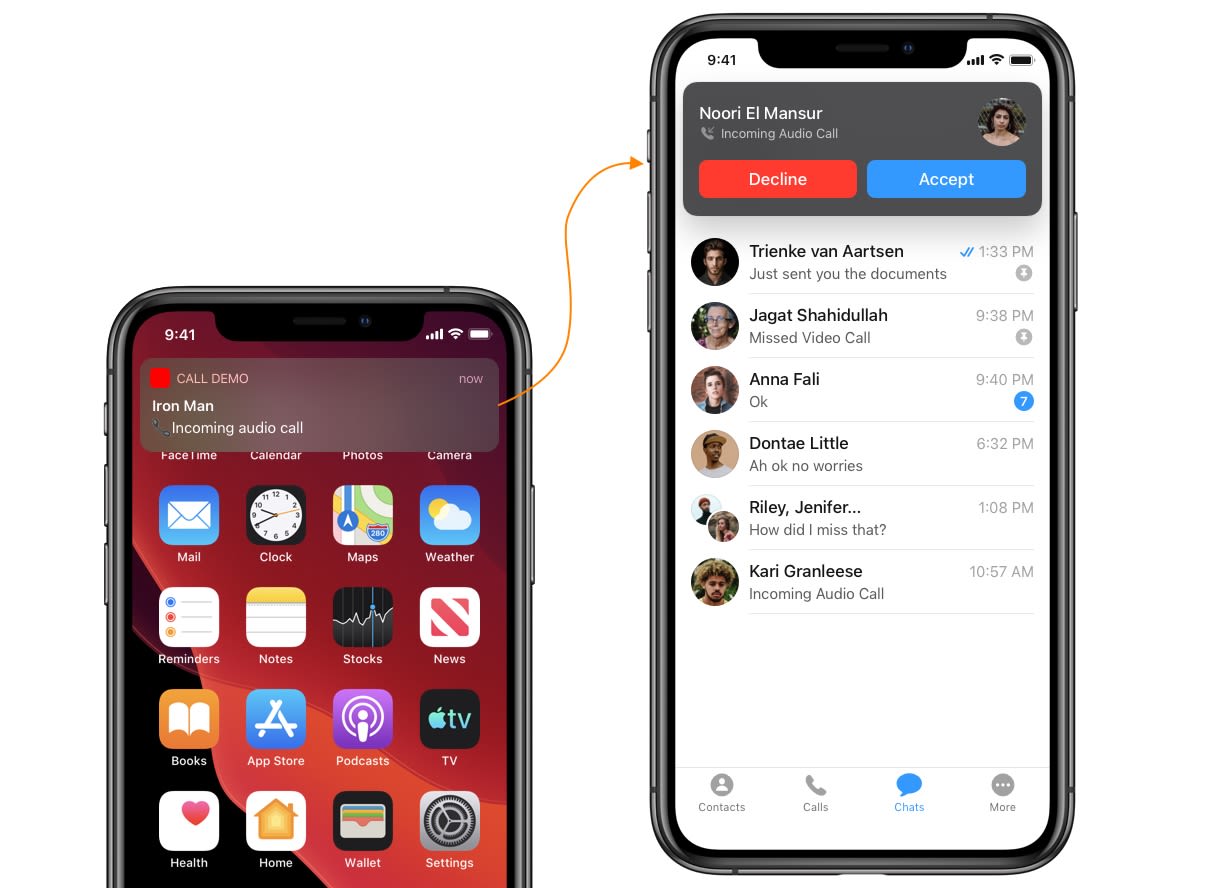
This guide helps you launch an incoming call screen from the UI Kit library on receiving an incoming call notification.
CometChat SDK & UI Kit both need to be configured before launching the call screen.

Step 1. Process push notification payload and grab Call object

To present an incoming call screen, you need a Call object. You can grab this from the push notification payload of the incoming call notification using CometChat.processMessage().
 func userNotificationCenter(_ center: UNUserNotificationCenter,
                    didReceive response: UNNotificationResponse,
                    withCompletionHandler completionHandler: @escaping () -> Void) {
        
        if let userInfo = response.notification.request.content.userInfo as? [String : Any], let messageObject = userInfo["message"] as? [String:Any] {
           print("didReceive: \(userInfo)")
          if let baseMessage = CometChat.processMessage(messageObject).0 {
            switch baseMessage.messageCategory {
            case .message:
                print("Message Object Received: \(String(describing: (baseMessage as? TextMessage)?.stringValue()))")
                
            case .action: break
            case .call: break
            case .custom: break
            @unknown default: break
            }
          }
        }
        completionHandler()
      }

Step 2. Launch call screen (Method 1)

You can directly launch the view controller from the app delegate once you receive the Call Object.
  if let call = baseMessage as? Call {
      DispatchQueue.main.async {
      let call = CometChatIncomingCall()
      call.modalPresentationStyle = .custom
      call.setCall(call: call)
     if let window = self.window, let rootViewController = window.rootViewController      {
     var currentController = rootViewController
     while let presentedController = currentController.presentedViewController {
     currentController = presentedController
     }
      if (!call.isViewLoaded && (call.view.window != nil)) {
     currentController.present(call, animated: true, completion: nil)
      }
     }
   }
 }
If you are facing difficulties launching the Call Screen from App Delegate, use the alternative method below.

Step 2. Launch call screen (Method 2)

You can launch the call screen from your base view controller using NotificationCenter.
  1. Fire a notification after you receive the Call Object.
  2. Pass the Call Object in the notification’s user info.

Trigger notification from App Delegate

if let call = baseMessage as? Call {
  DispatchQueue.main.asyncAfter(deadline: .now() + 0.5) {
 NotificationCenter.default.post(name: NSNotification.Name(rawValue: "didReceivedIncomingCall"), object: nil, userInfo: ["call":call])
   }
}
  1. Observe the notification in your base view controller.
  1. Base view controller is a controller that launches immediately after the app delegate.
  2. Base view controller should be present to observe the notification when notification fires.
  3. If the view controller is not present in the memory when a new notification receives, then it won’t launch Call Screen.

Observe notification in Base View Controller

class BaseViewController : UIViewController {
  
  override func viewDidLoad() {
    NotificationCenter.default.addObserver(self, selector:#selector(self.didReceivedIncomingCall(_:)), name: NSNotification.Name(rawValue: "didReceivedIncomingCall"), object: nil)
  }
}

Add selector method & Launch call screen

 @objc func didReceivedIncomingCall(_ notification: NSNotification) {
        if let currentCall = notification.userInfo?["call"] as? Call {
            DispatchQueue.main.async {
              let call = CometChatIncomingCall()
              call.modalPresentationStyle = .custom
              call.setCall(call: currentcall)
              self.present(call, animated: true, completion: nil)
            }
        }
 }

Next Steps

Ringing / Default Calling

Set up default calling with ringing

Push Notifications

Set up push notifications for your iOS app

Launch Chat Window

Open chat window from push notification tap

UI Kit Overview

Pre-built UI components for iOS