

AI Integration Quick Reference
AI Integration Quick Reference
- Requires: UNNotificationServiceExtension target in your app
- Purpose: Mark messages delivered even when app is in background/terminated
- Implementation: Call
CometChat.markAsDelivered()in notification extension - Parse payload: Extract message ID, sender ID, receiver type from notification
- Related: Delivery & Read Receipts · Push Notifications
If you already have a Notification extension on your project then you can skip the first part of creating a new extension and use the one you have.
Setting up Notification extension
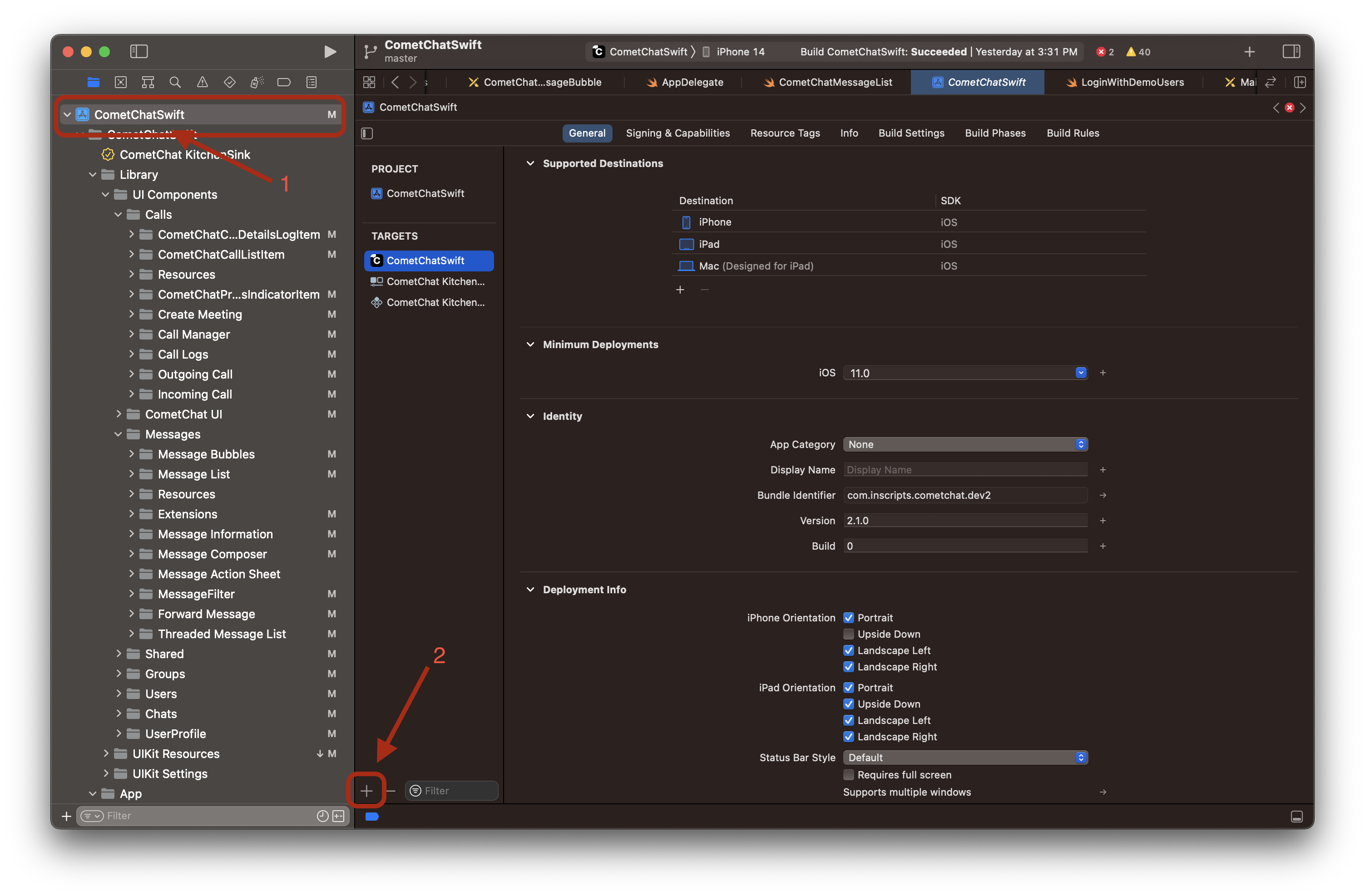
- Navigate to your project’s target section and click on the plus iOS
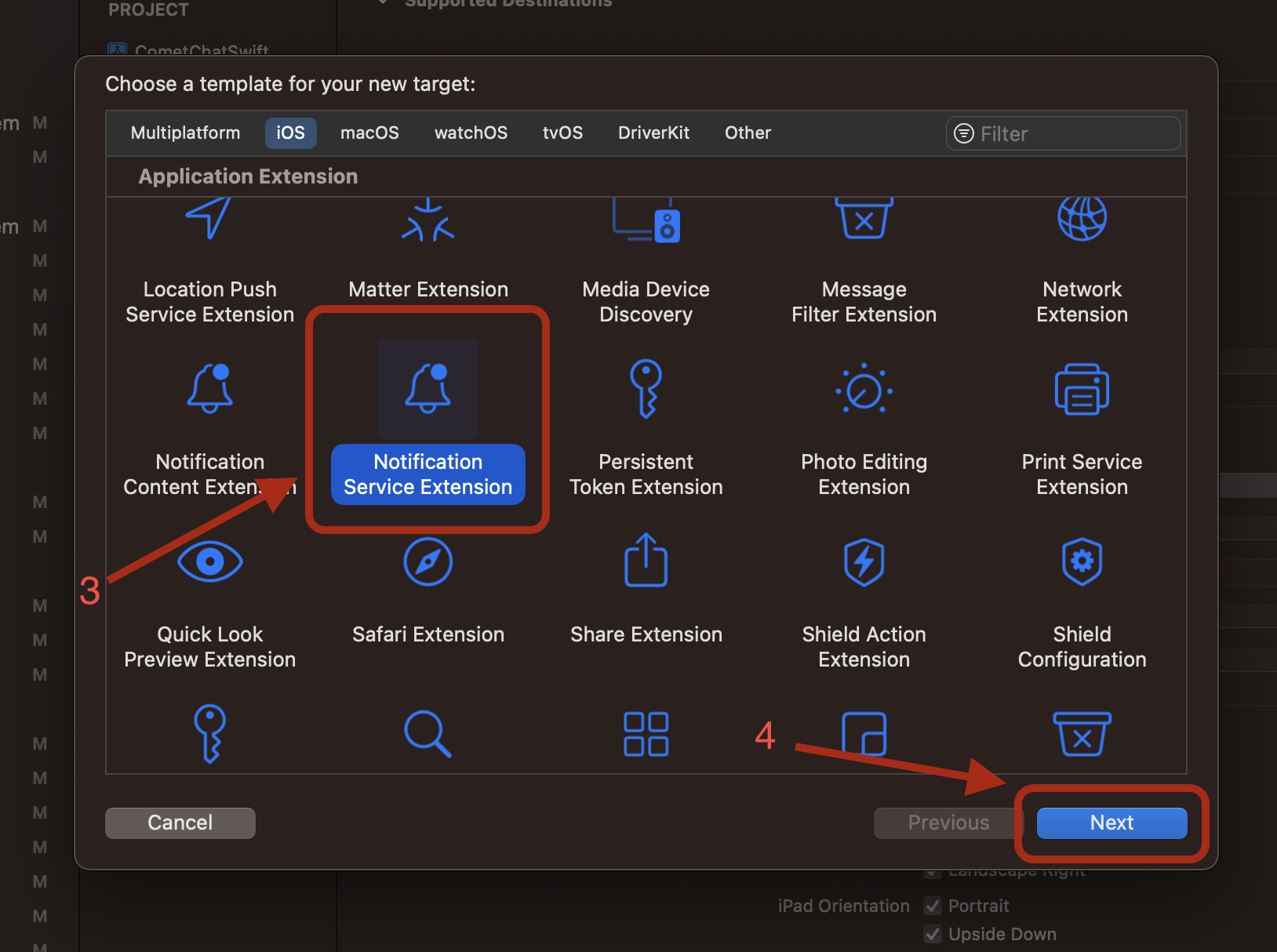
- Then Scroll down, select Notification Service Extension and click on the next.
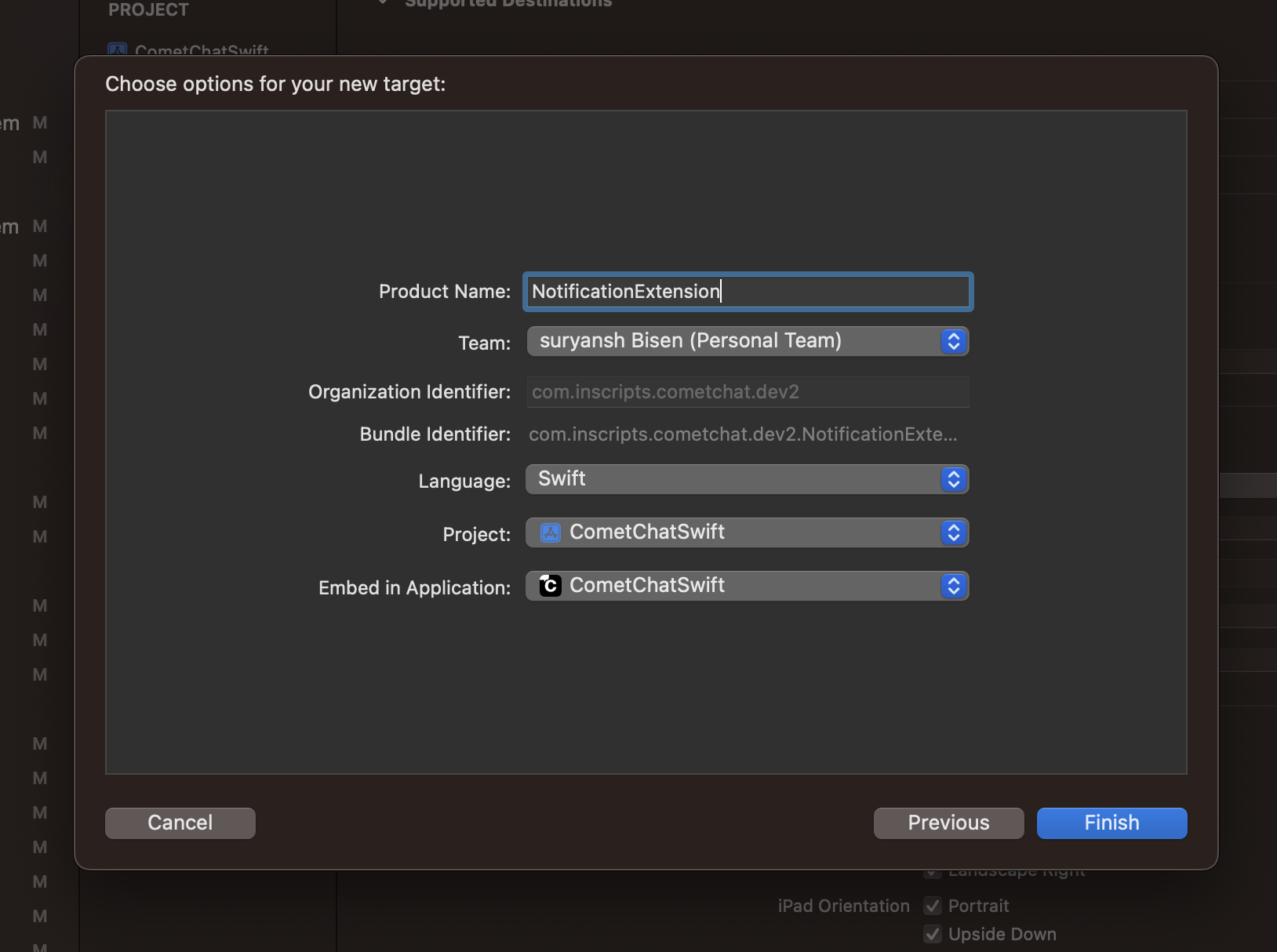
- Give it a name and click finish
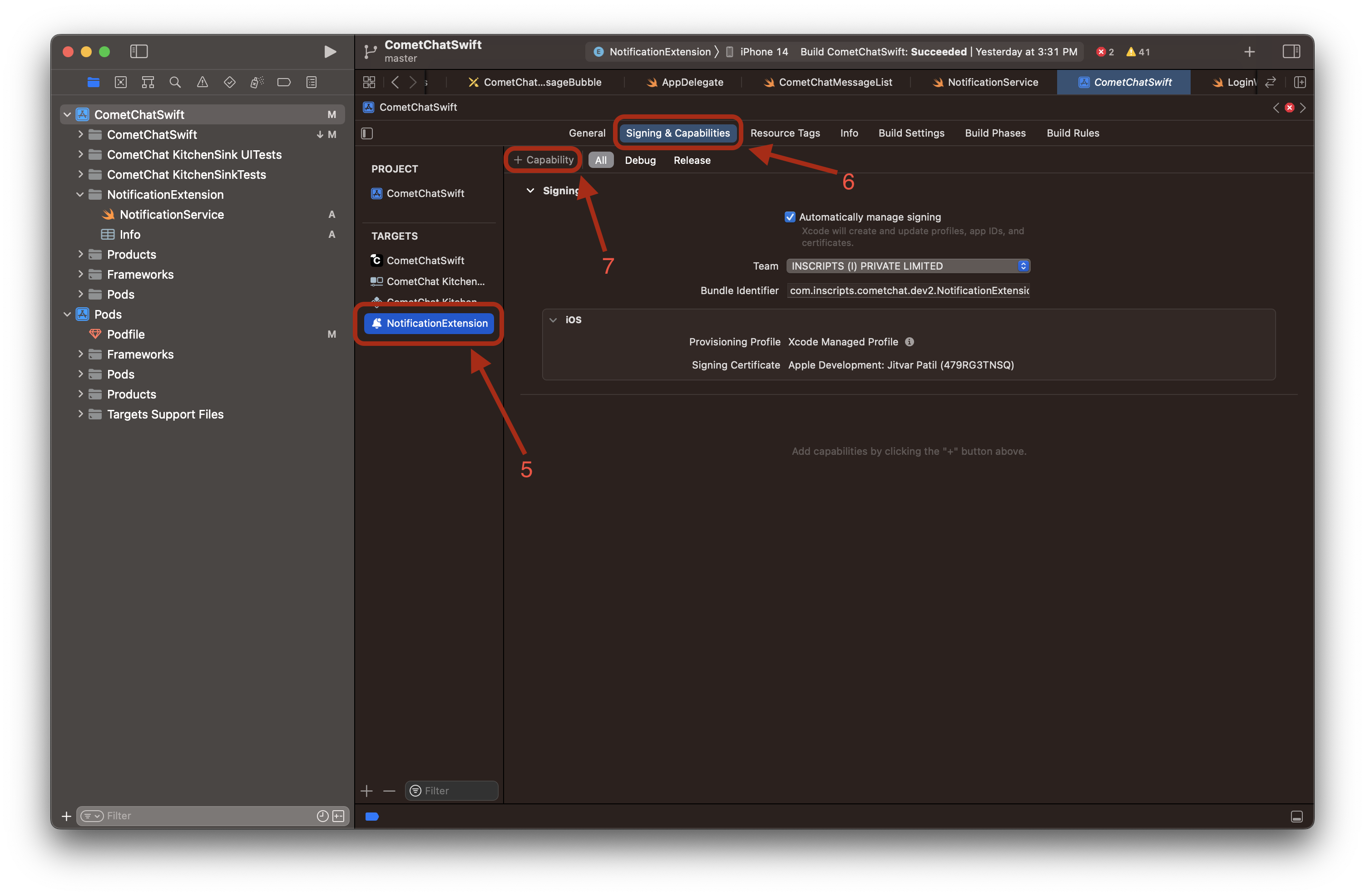
- Your notification service extension is ready now, you can see that in the target list. Now we will create app group for the extension. This app group will be needed to share user default between the main application and notification service extension.
- Click on the notification service extension name on the target list, then select Signing & Capabilities, then click on ”+ Capability” from the top. Make sure All is selected besides it.
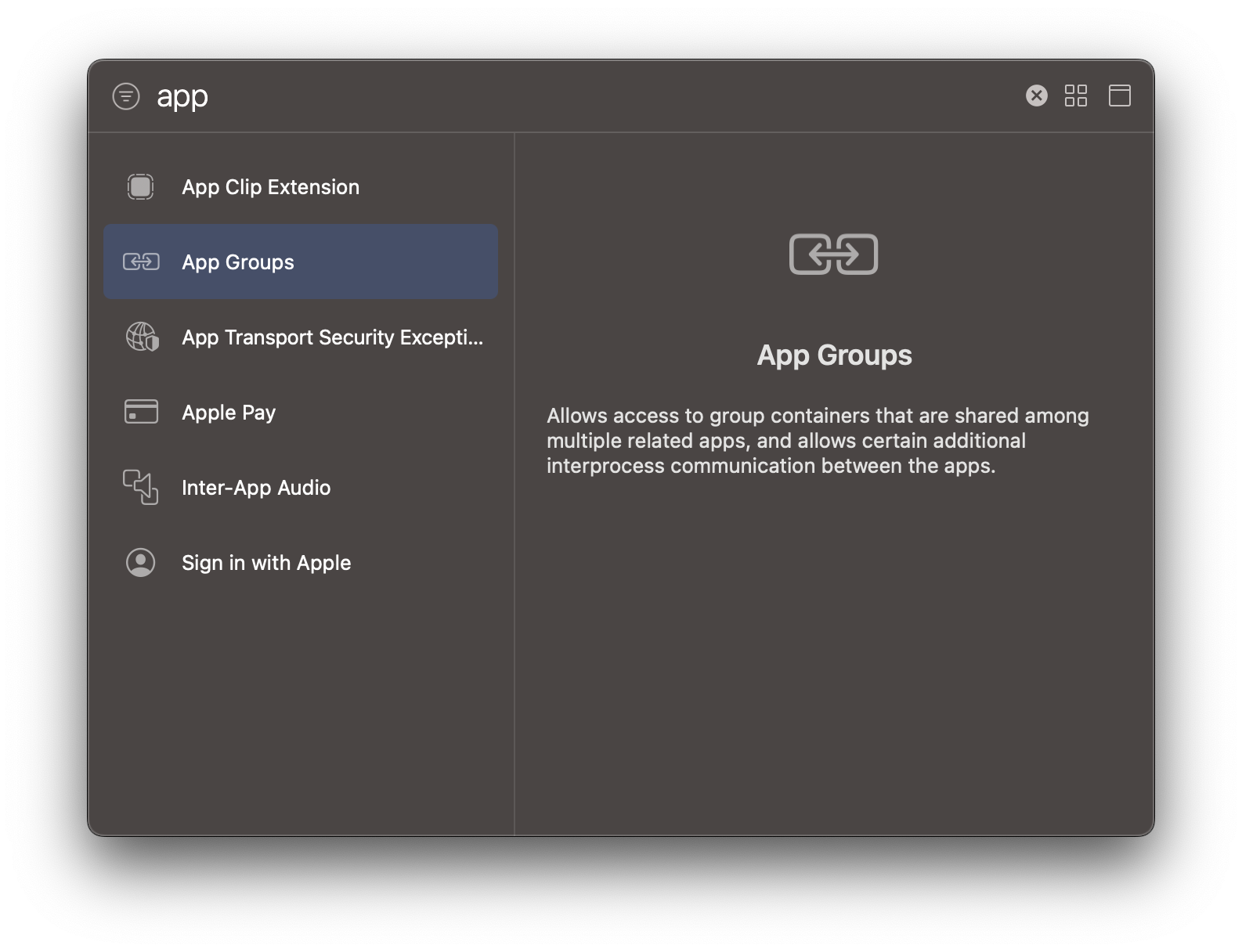
- Then search for App Group and click on it. You can see a section of the app group section must have been added on the ‘Signing & Capabilities’.
- Select any of the suggested app group ID or you can add your own ID by clicking on the plus icon. Till this step app group is added on the notification extension target and app group is selected.
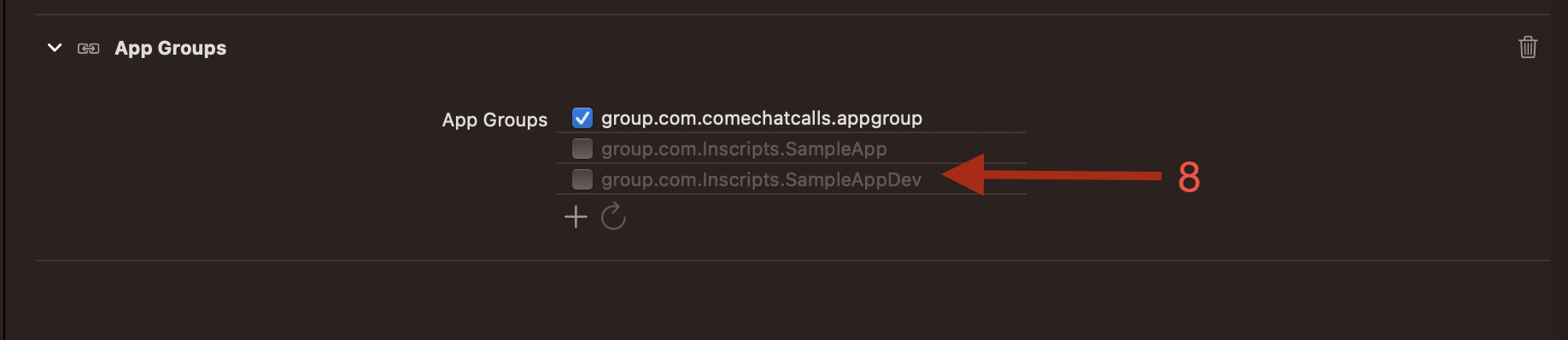
- Now add the Capability of App Group on the main app’s target as well. Repeat the same steps from step 4 for your main app target.
- Select the same group ID that you selected on the notification extension target’s app group.
Make sure the app ID is exactly the same on both the notification extension target and the main app target.
- Lastly, add CometChatSDK in your notification extension target in the pod file.
- Swift
Code for Mark as read
- Navigate to the CometChat initialization code in your project and add the group ID that you selected on app groups on the AppSettingsBuilder.
- Swift
- Navigate to your notification extension group and open its swift file.
- Import CometChatSDK and call these 2 functions in the
didReceive(_:withContentHandler:)function.
- Swift
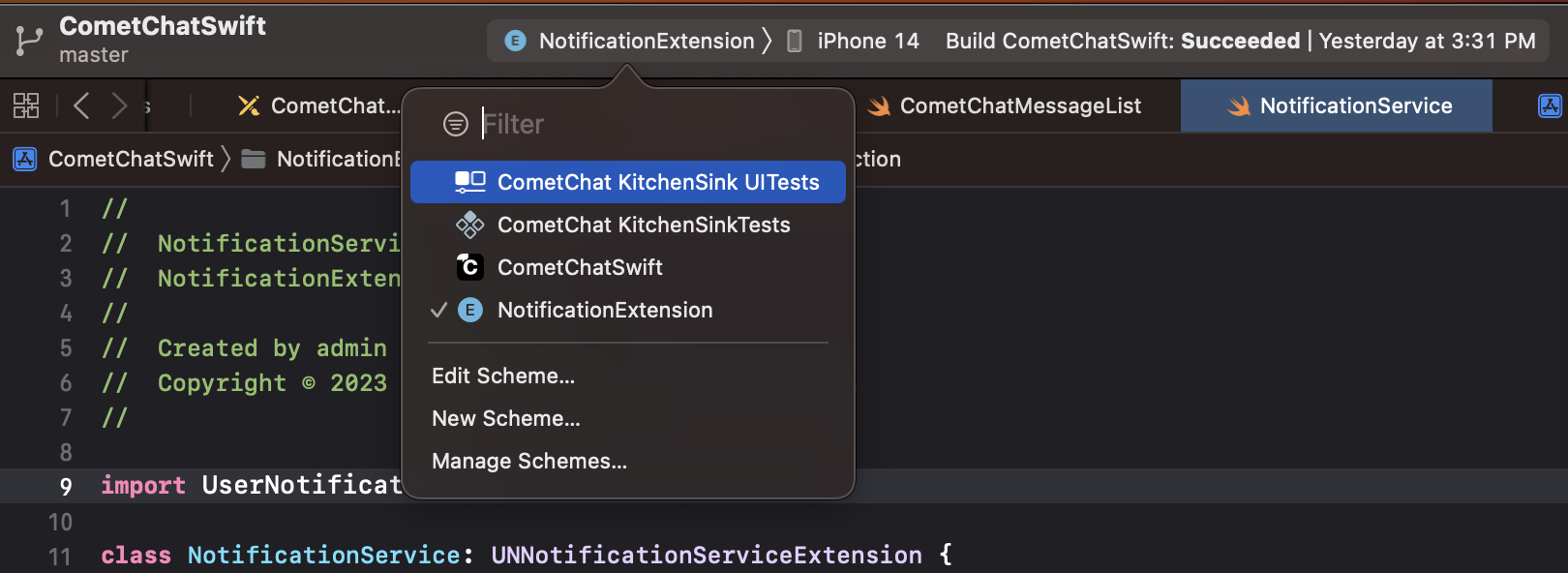
Run the main app target first and make sure you are receiving notifications there. And then run the notification extension target.
Next Steps
Delivery & Read Receipts
Mark messages as delivered and read
Push Notifications
Set up push notifications for your iOS app
Increment Badge Count
Update app icon badge from push notifications
Remove Delivered Notifications
Programmatically remove delivered notifications