

AI Integration Quick Reference
AI Integration Quick Reference
Quick Reference for AI Agents & DevelopersKey components powering core features:
- Conversations → CometChatConversations
- Message List → CometChatMessageList
- Message Composer → CometChatMessageComposer
- Message Header → CometChatMessageHeader
- Users → CometChatUsers
- Groups → CometChatGroups
- Group Members → CometChatGroupMembers
Overview
The UI Kit comprises a variety of components, each designed to work seamlessly with one another to deliver a comprehensive and intuitive chat experience. Here’s how different UI Kit components work together to achieve CometChat’s core features:Instant Messaging
At the heart of CometChat’s functionality is the ability to support real-time text messaging. Users can send and receive instant messages, fostering quick and efficient communication.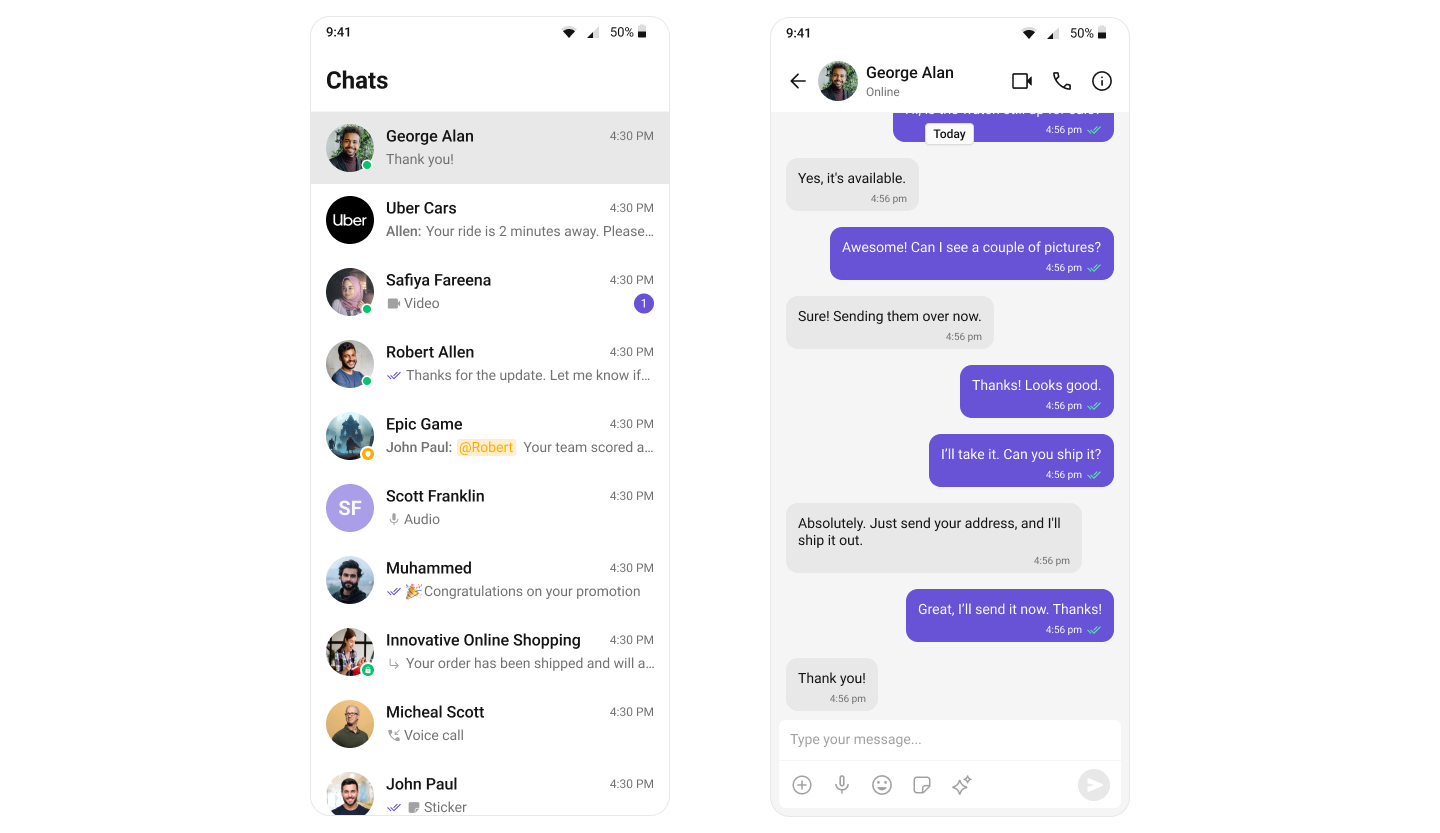
Media Sharing
Share multiple images, videos, audio files, and documents in a single send. Tapping the attachment button opens a multi-select picker; the picks stage in a preview tray above the input box with per-file upload progress, and send together with an optional caption — all out of the box.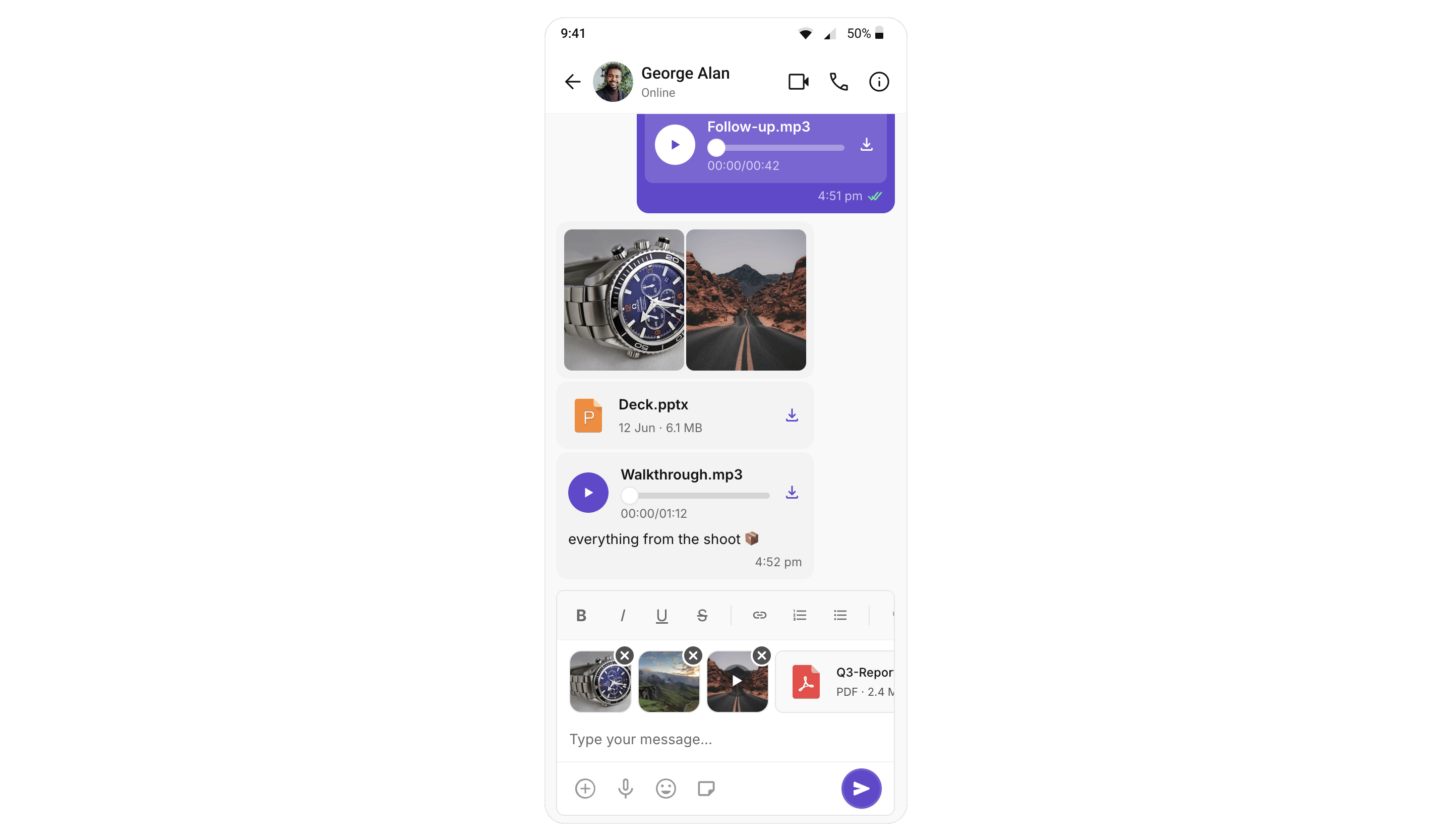
A mixed pick is split into one message per attachment type (images → videos → audios → files) that render as grouped bubbles: an image/video grid, a stacked audio player list, and a connected file card stack. Per-message file count and per-file size limits come from your app’s dashboard settings.
A complete messaging interface can be built by combining three key components: MessageHeader, MessageList, and MessageComposer.
Read Receipts
CometChat’s Read Receipts feature provides visibility into message status, letting users know when a message has been delivered and read. This brings clarity to communication and ensures users are informed about the status of their messages.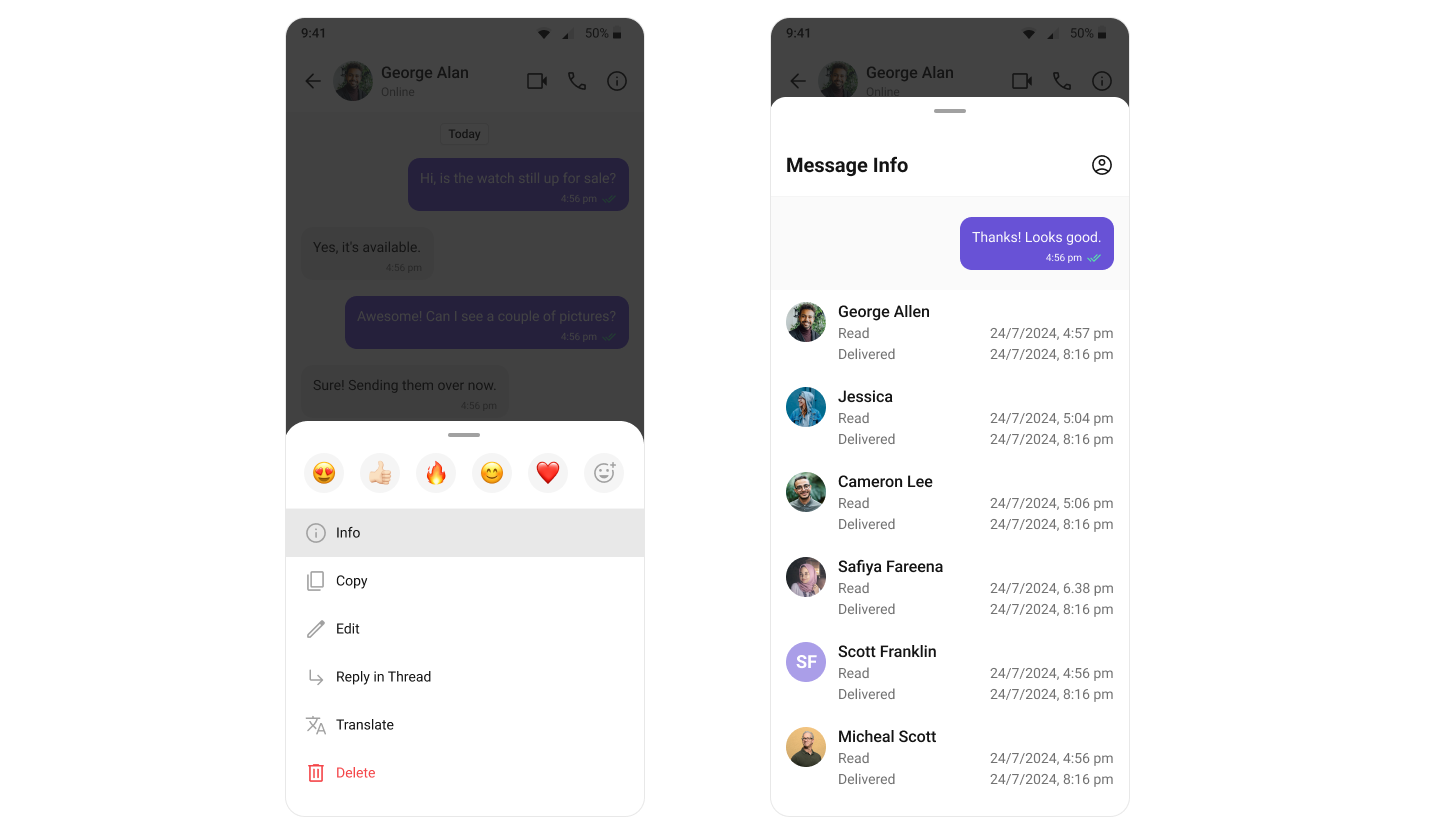
Mark as Unread
The Mark as Unread feature allows users to manually mark messages as unread, helping them keep track of important conversations they want to revisit later. When enabled, the message list can automatically start from the first unread message, making it easier to pick up where you left off.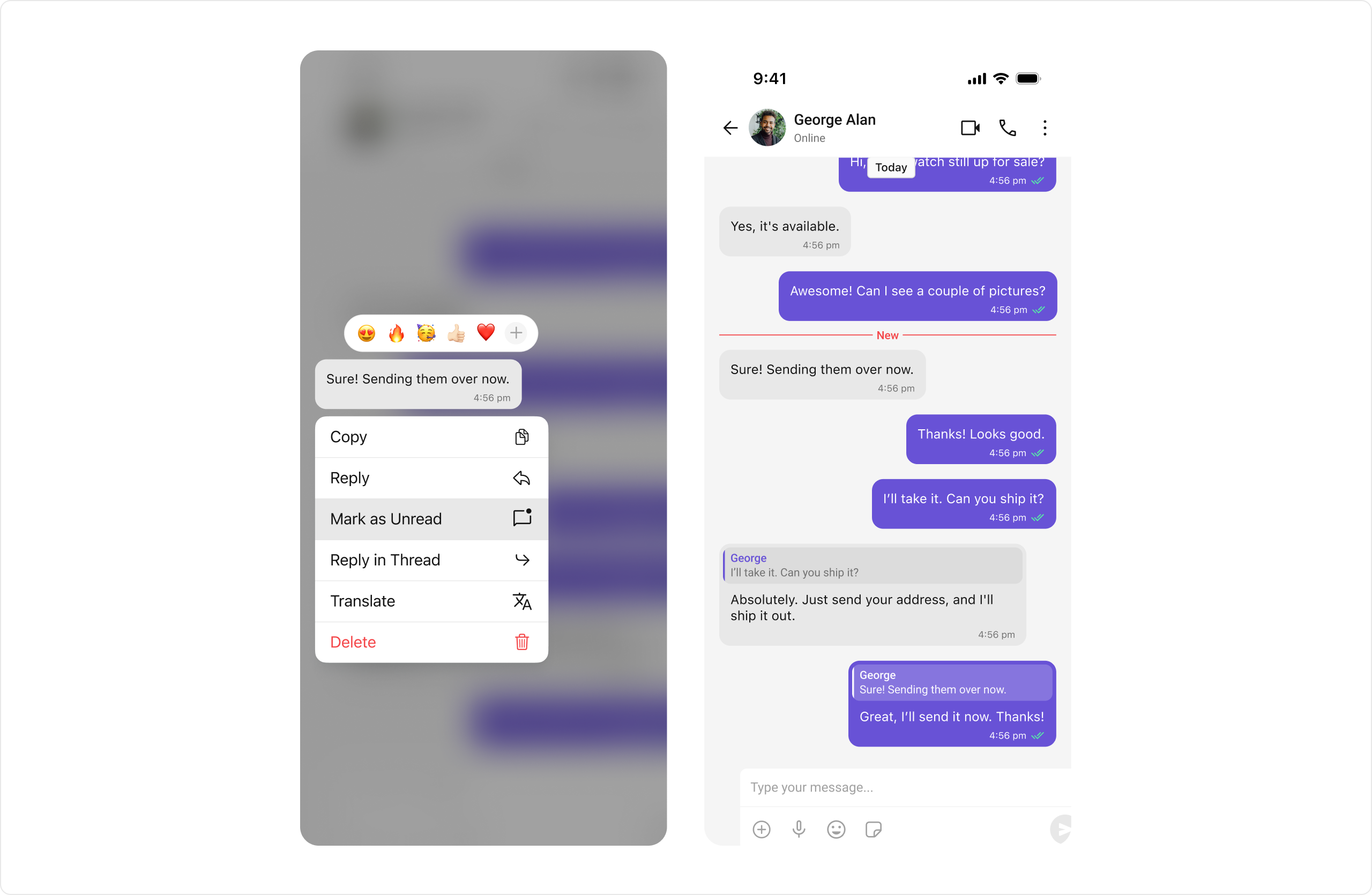
Typing Indicator
The Typing Indicator feature shows when a user is typing a response in real-time, fostering a more interactive and engaging chat environment. This enhances the real-time communication experience, making conversations feel more natural and fluid.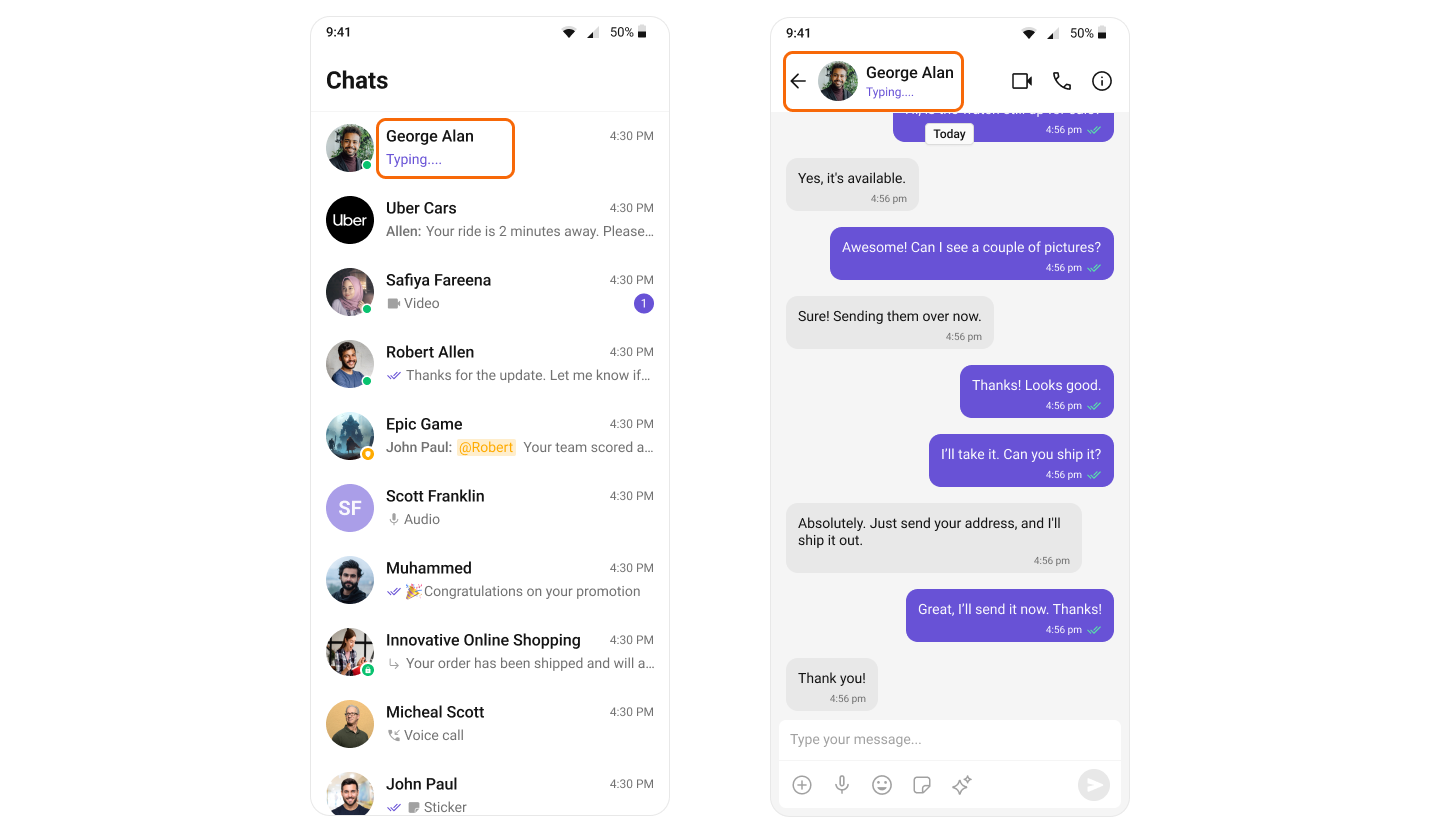
User Presence
CometChat’s User Presence feature lets users see the online or offline status of their contacts, helping them choose the right time to start a conversation and set expectations for response times.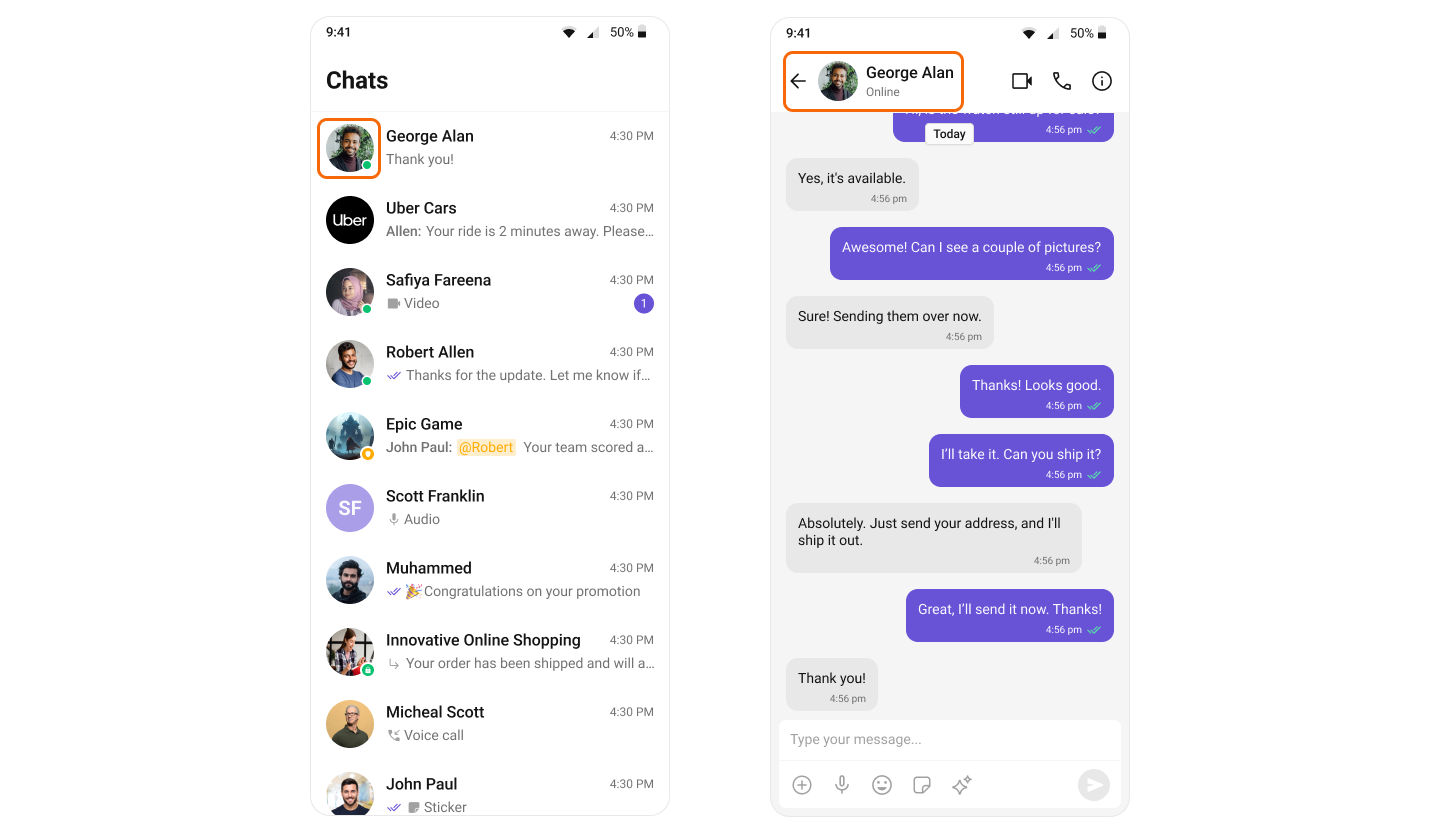
Reactions
CometChat’s Reactions feature adds a layer of expressiveness to your chat application by allowing users to react to messages. With Reactions, users can convey a range of emotions or express their thoughts on a particular message without typing out a full response, enhancing the user experience and fostering greater engagement.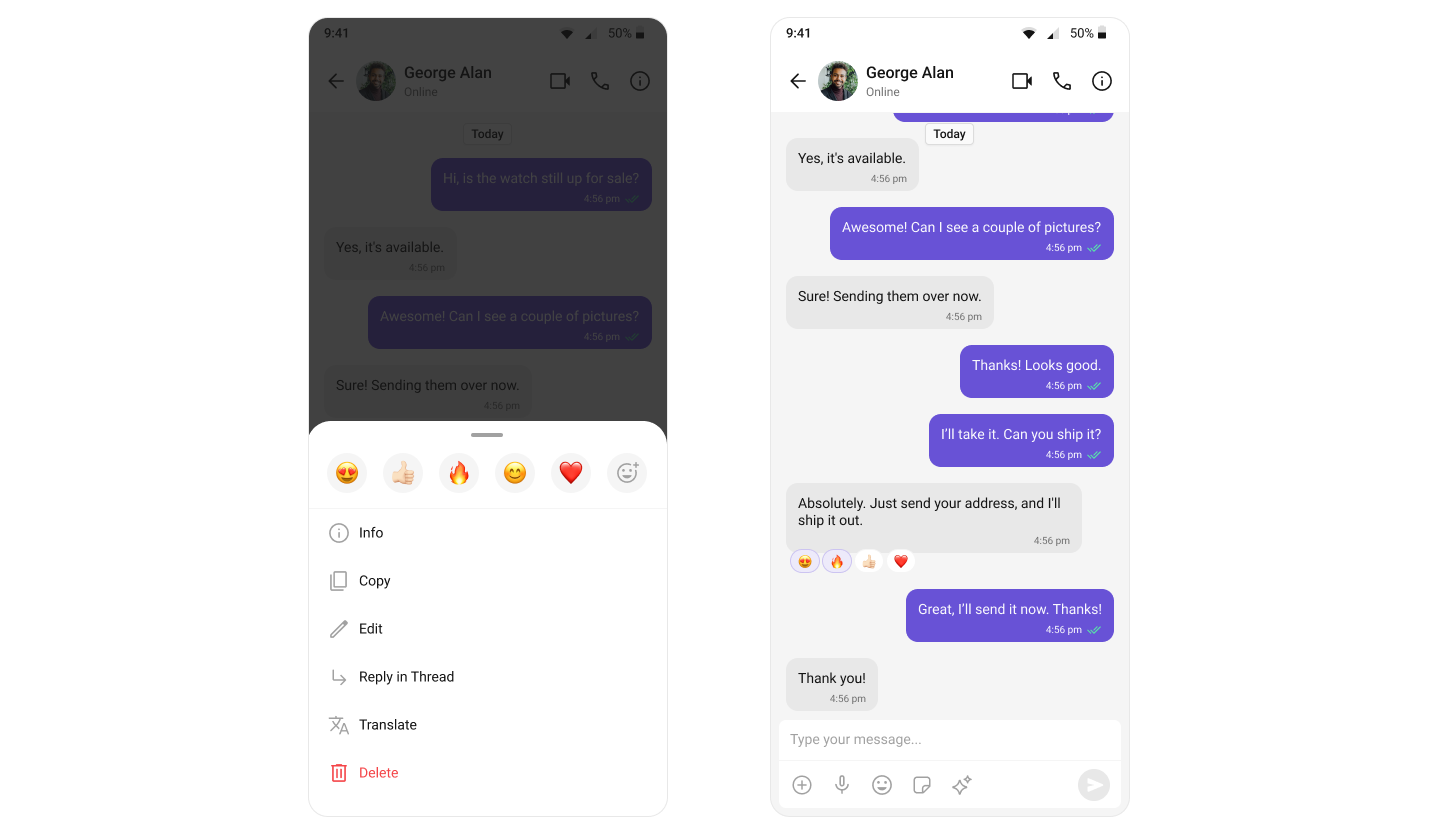
Mentions
Mentions is a feature that enhances the interactivity and clarity of group or 1-on-1 chats by allowing users to directly address or refer to specific individuals in a conversation.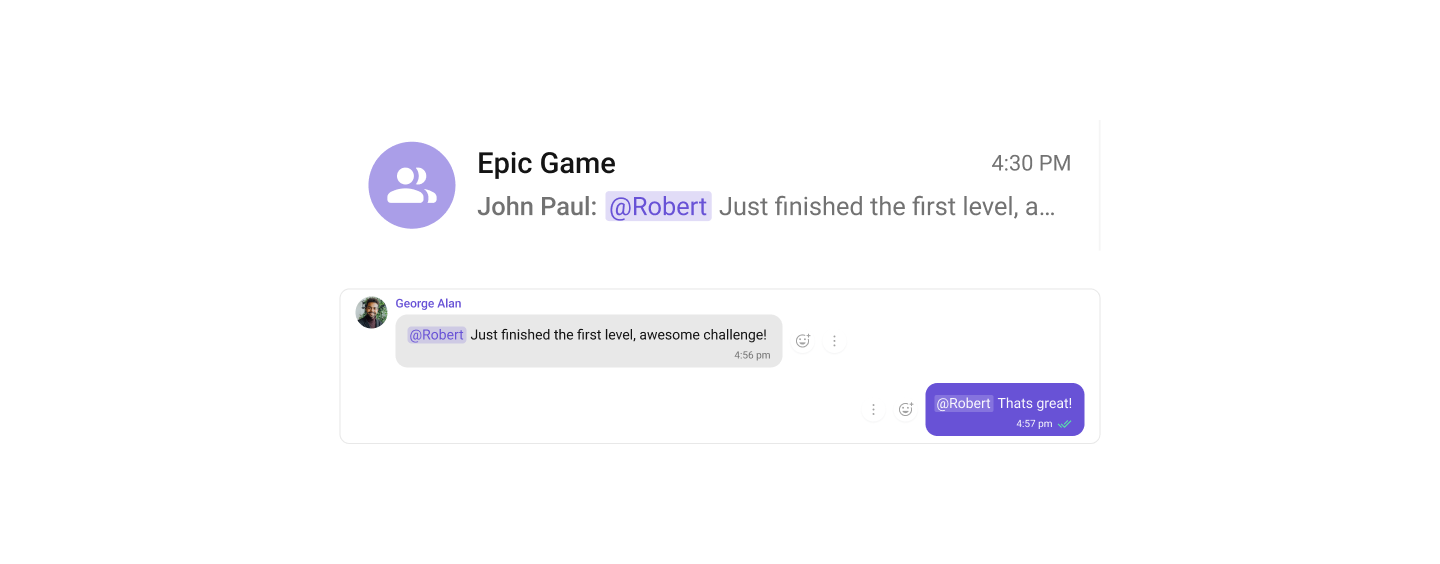
Rich Text Formatting
Rich Text Formatting allows users to style their messages with bold, italic, underline, strikethrough, code, links, lists, blockquotes, and code blocks. This brings richer expression to conversations and helps users emphasize key points.
Quoted Reply
The Quoted Reply feature enables users to quickly reply to specific messages by selecting the “Reply” option from a message’s action menu. This enhances context, keeps conversations organized, and improves the overall chat experience in both 1-on-1 and group chats.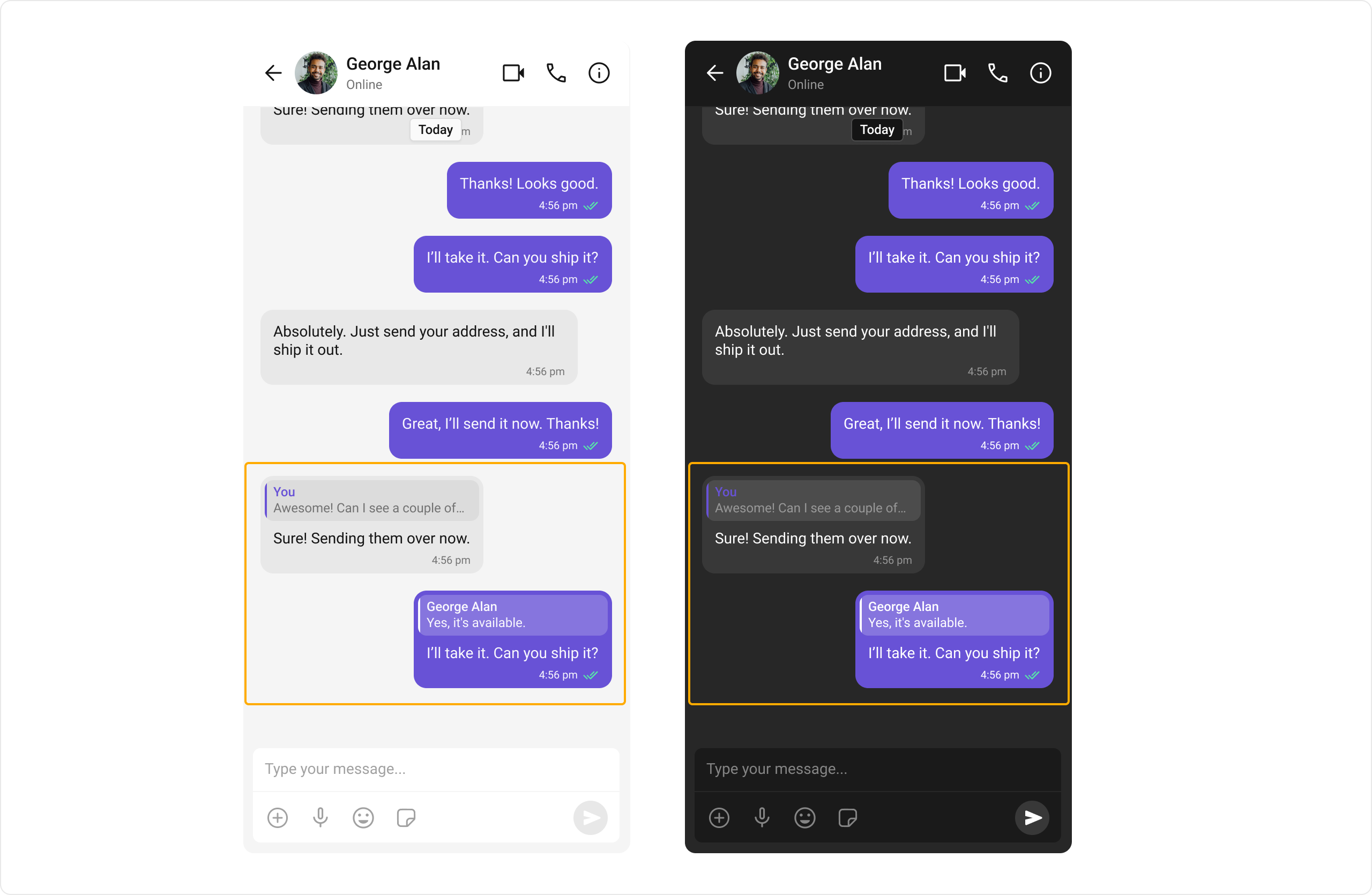
Conversation and Advanced Search
Conversation and Advanced Search enables users to quickly find conversations, messages, and media across chats in real time. It supports filters, scopes, and custom actions, allowing users to locate content efficiently while keeping the chat experience smooth and intuitive.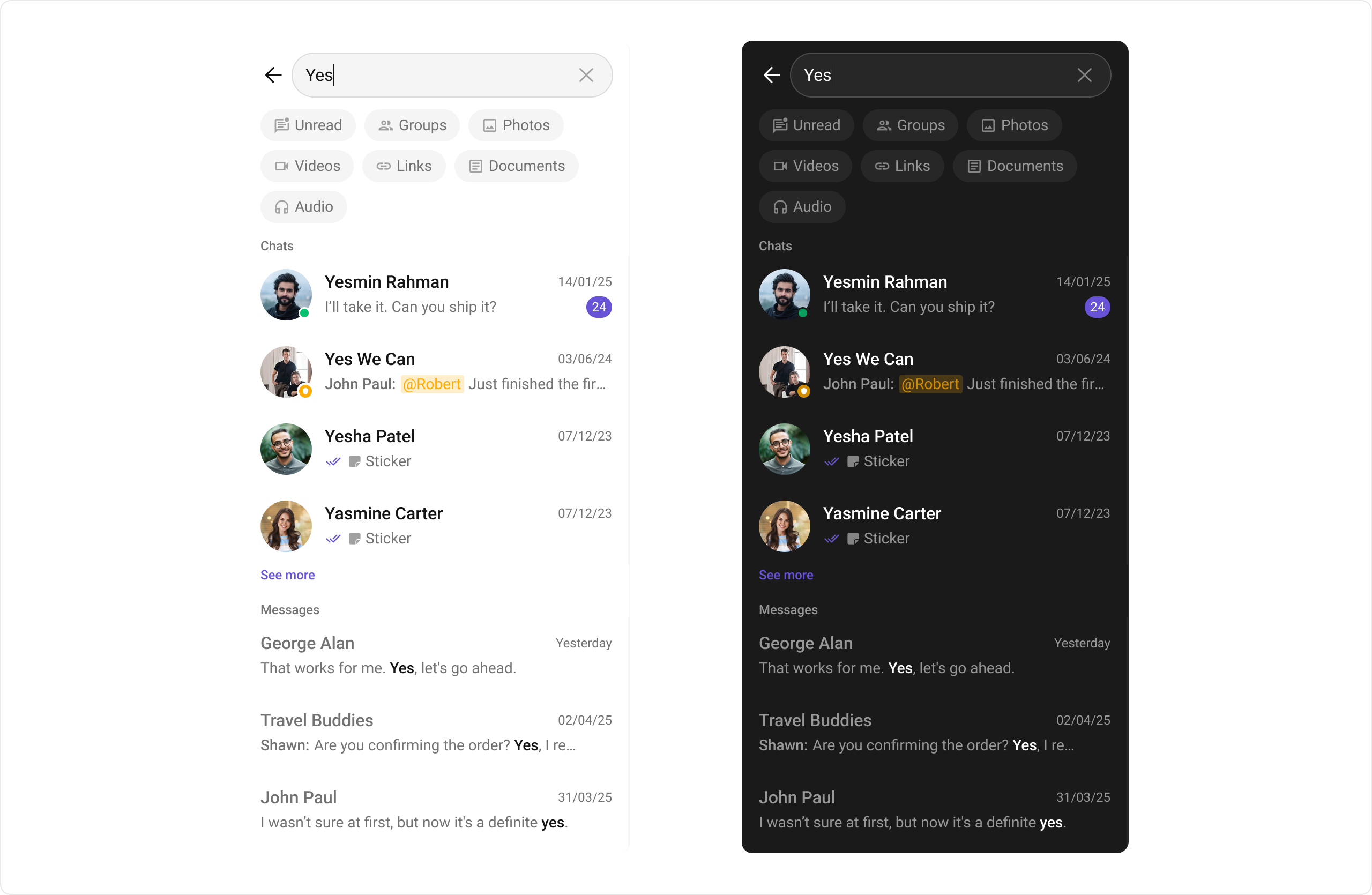
Moderation
CometChat’s Message Moderation feature helps maintain a safe and respectful chat environment by automatically filtering and managing inappropriate content. Messages can be automatically blocked or flagged based on predefined rules, ensuring harmful content is handled before it reaches users.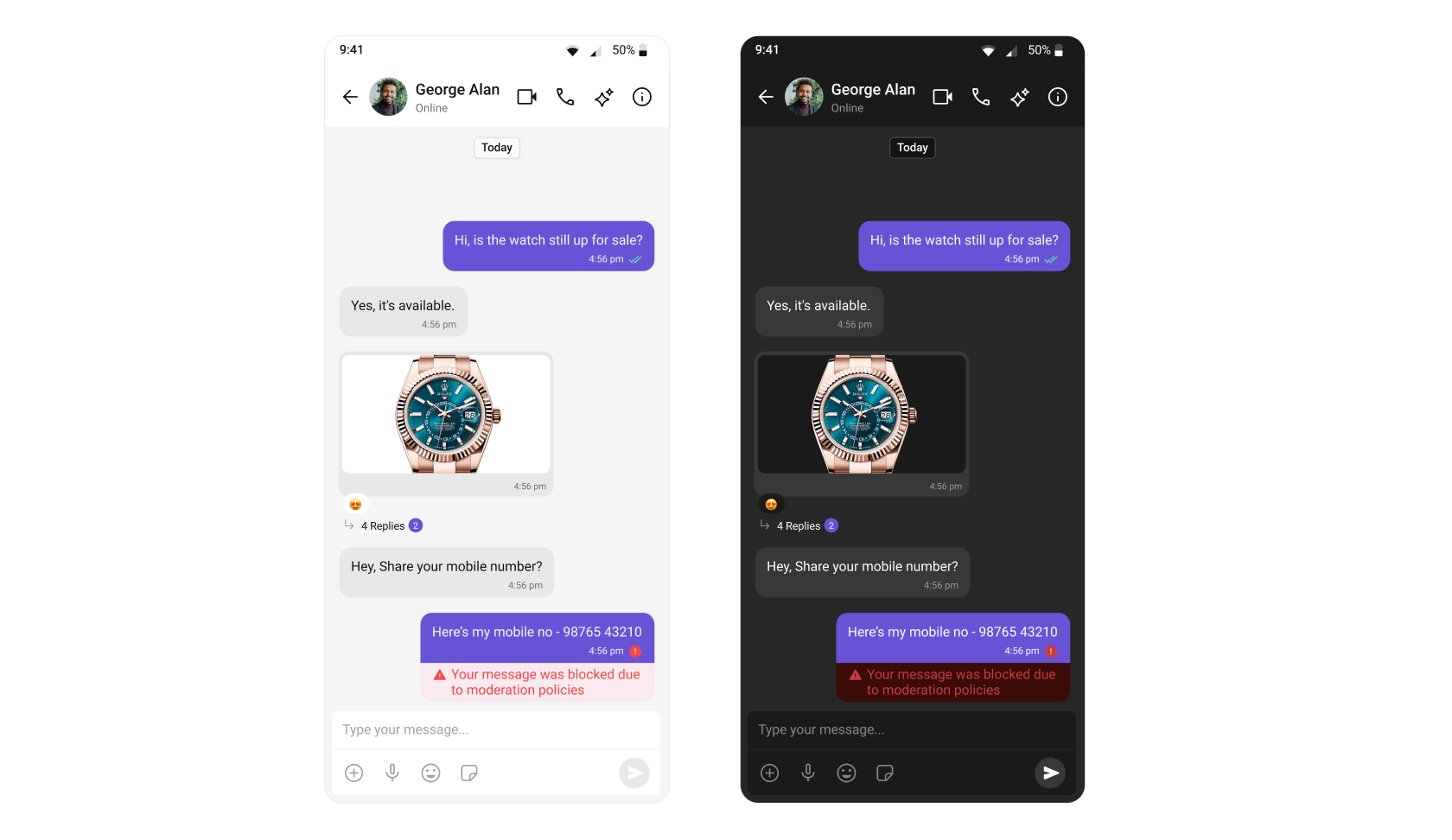
Learn more about setting up moderation rules and managing content in the Moderation documentation.
After implementing moderation rules, users can report messages they find inappropriate or harmful. As a next step, you can enable the Report Message feature to allow users to flag messages for review by moderators.
Report Message
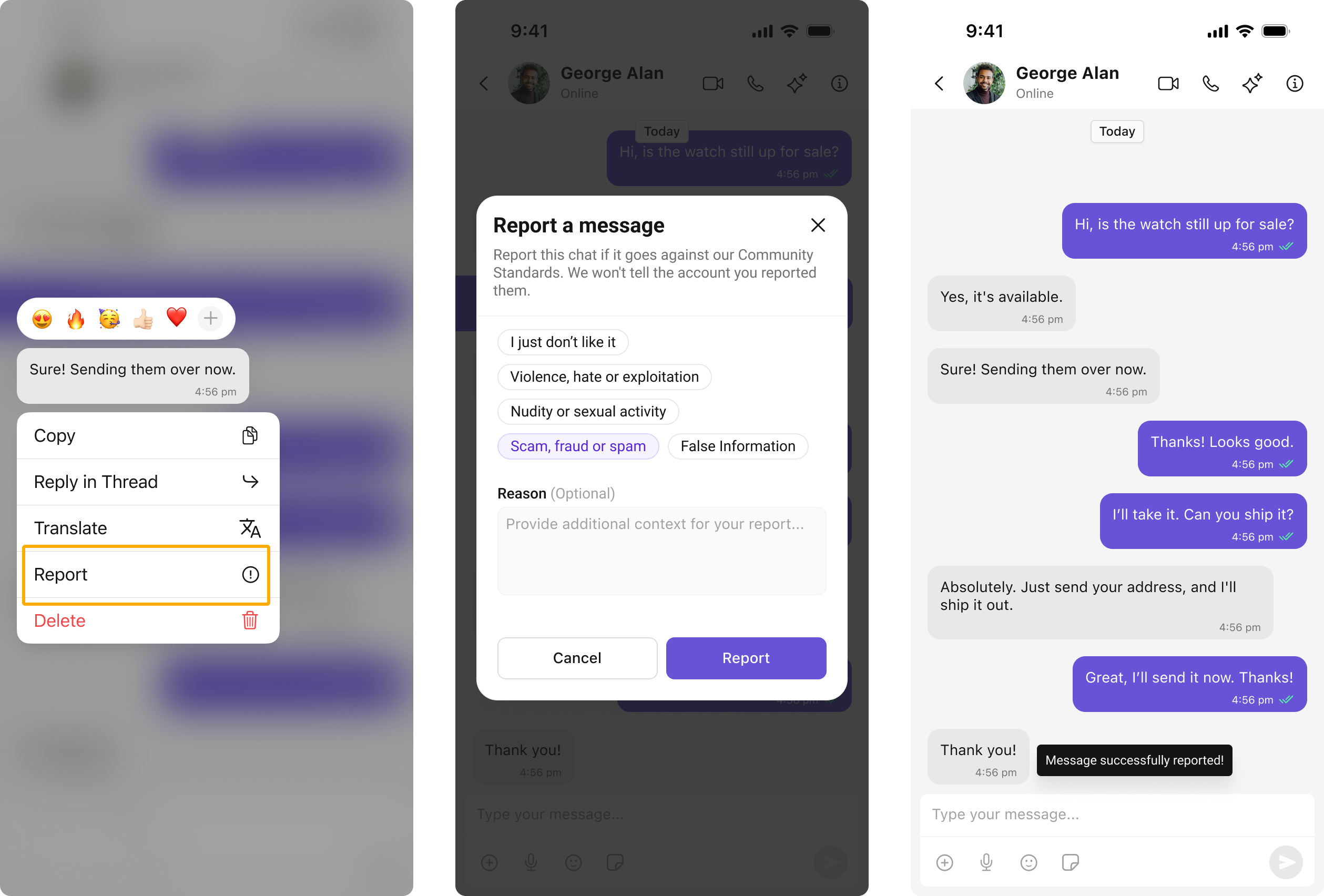
The Report Message feature allows users to report inappropriate or harmful messages within the chat. Users can choose from predefined reasons and provide additional remarks for detailed context. This feature helps maintain a safe and respectful chat environment.Learn more about how flagged messages are handled, reviewed, and moderated in the Flagged Messages documentation.
Threaded Conversations
The Threaded Conversations feature enables users to respond directly to a specific message in a chat. This keeps conversations organized and enhances the user experience by maintaining context, especially in group chats.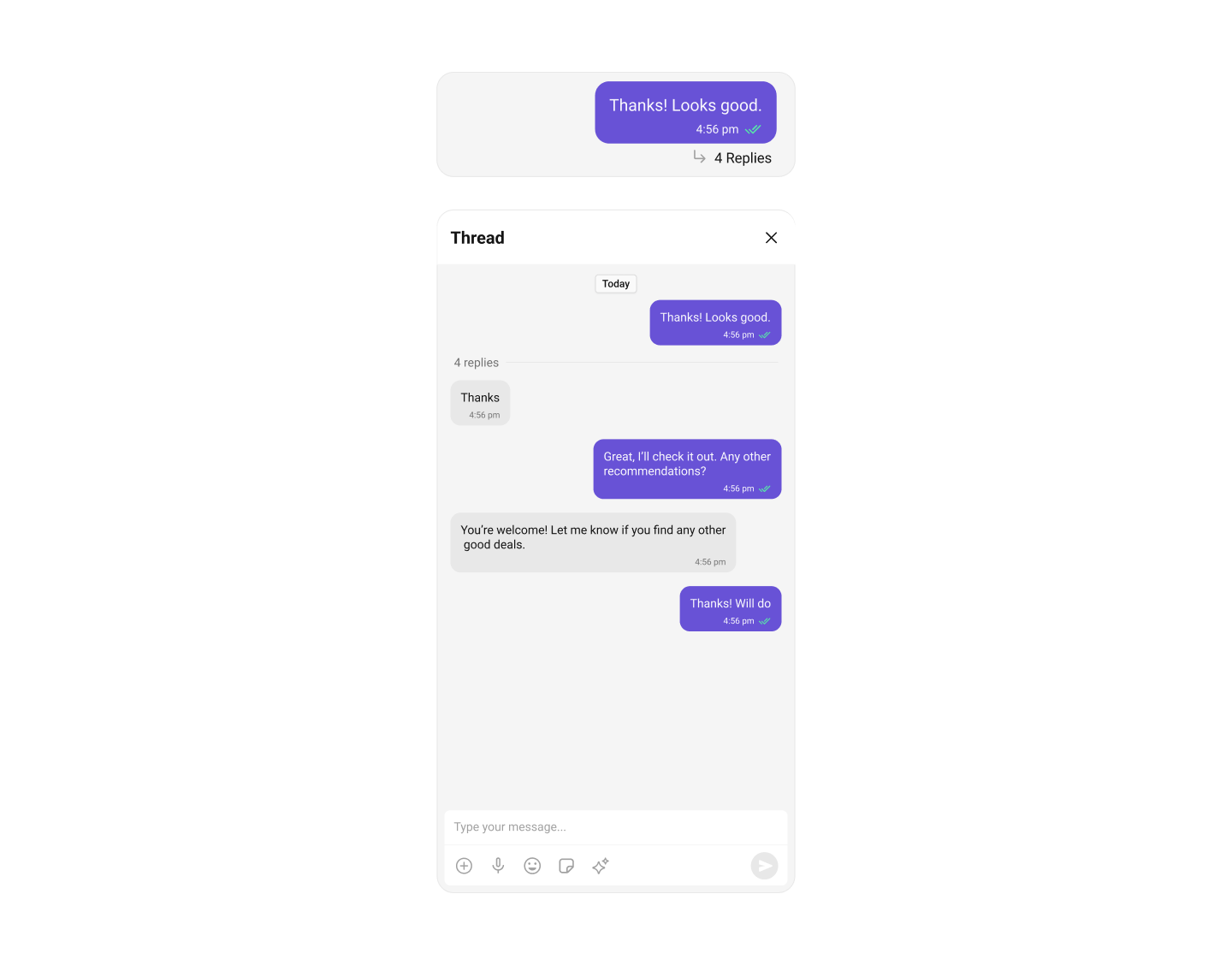
Group Chat
CometChat facilitates Group Chats, allowing users to have conversations with multiple participants simultaneously. This feature is crucial for team collaborations, group discussions, social communities, and more.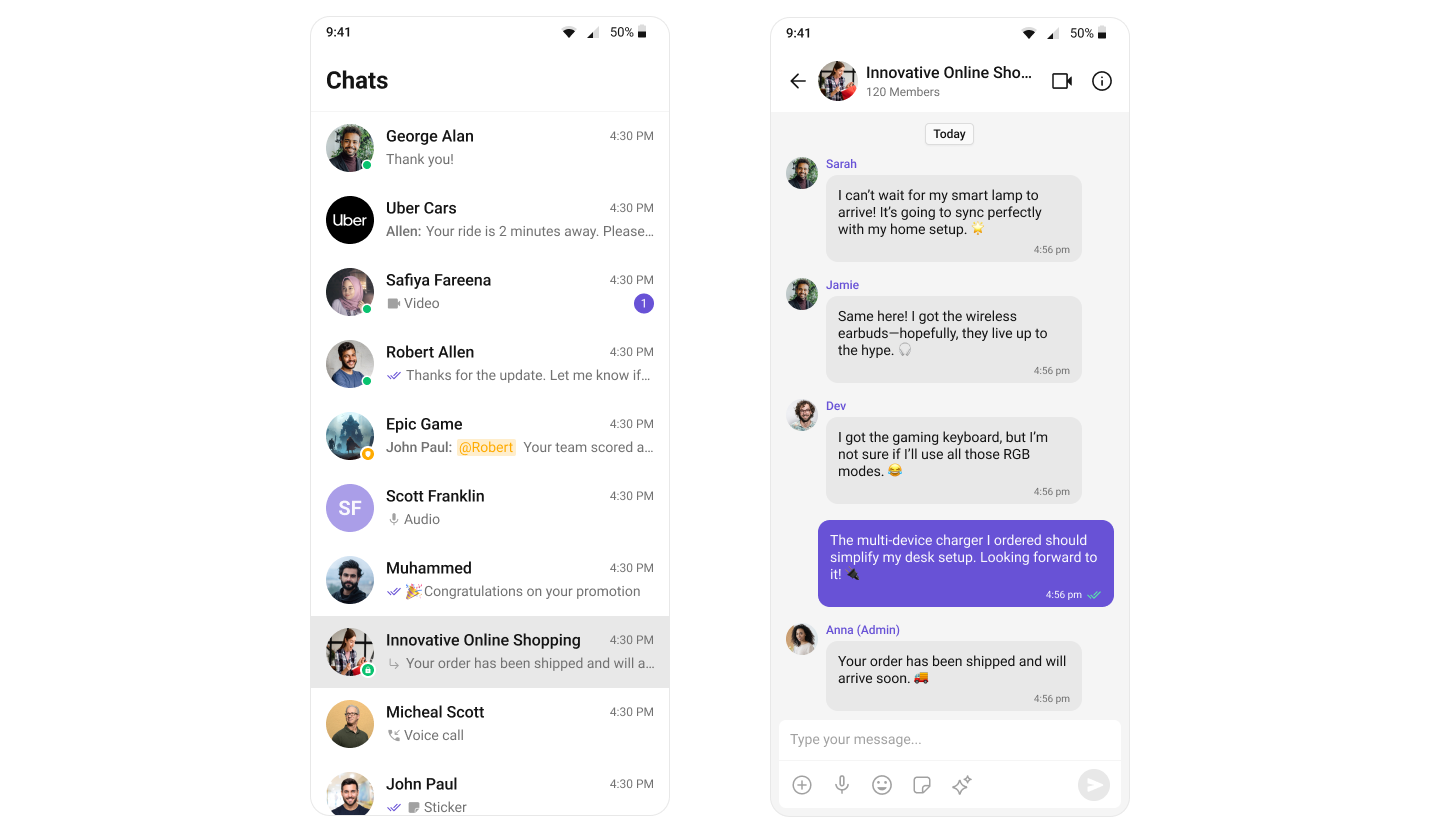
Next Steps
Call Features
Explore voice and video calling capabilities
Extensions
Add stickers, polls, link previews, and more
Components Overview
Browse all available UI Kit components
Theming
Customize colors, fonts, and appearance